


Characters
The Characters action decides who is on stage and how they look. You can put several characters on stage with one action.
Supported image formats: PNG, JPG, JPEG, GIF, BMP, WBMP and WEBP. A PNG or WEBP with a transparent background works best.
Each action sets the whole stage
A Characters action describes everyone visible after it, not just what changed:
- A character in the action is on stage.
- A character not in the action leaves.
- An action with no characters clears the stage.
So to bring in a second character while the first stays, include both in the new action.
Settings
Tap ADD CHARACTER for each person on stage. For each one:
| Setting | Details |
|---|---|
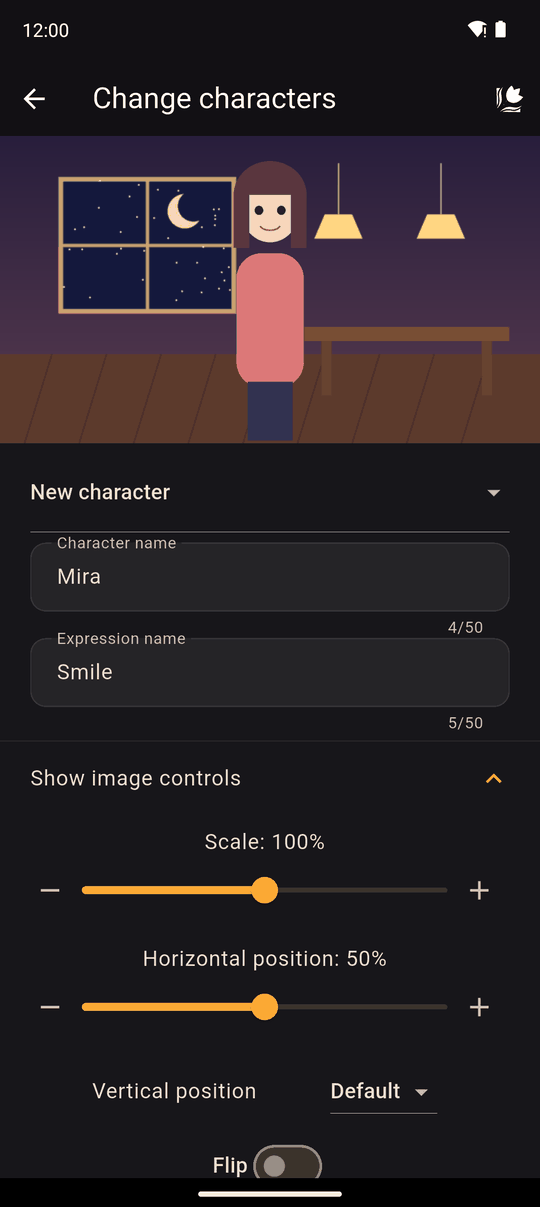
| Character | Pick an existing character, or create one with Character name (up to 50 characters) |
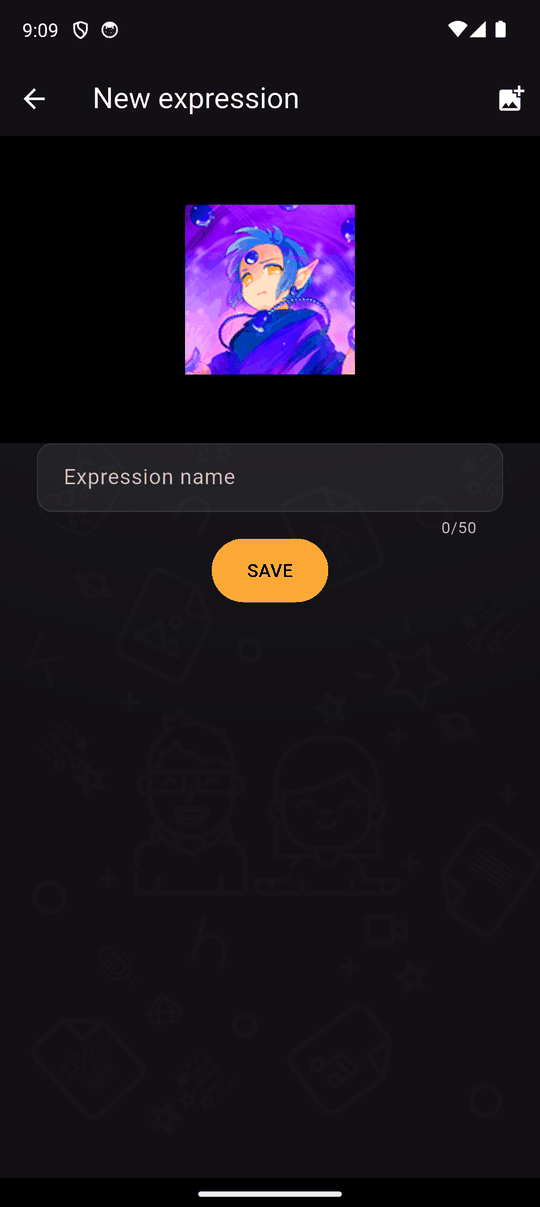
| Expression | Pick an expression (Select an expression) or create New expression with an Expression name (up to 50 characters) and an image |
| Transition In | How they arrive: None, Fade, Left to right, Right to left or Shake |
| Transition Out | How they leave, with the same options |
Tap Show image controls to fine-tune placement:
| Control | Range |
|---|---|
| Scale | 0 to 200 |
| Horizontal position | 0 to 100 |
| Vertical position | Default, or Custom with 0 to 100 |
| Flip | Mirrors the image left to right |
The preview above the actions shows the result as you change the sliders. The − and + buttons nudge values by one step.
Characters, expressions and images
A character is a person; an expression is one image of them (happy, angry, in a school uniform). Each expression uses one image. Once created, they are reusable everywhere and managed in the Characters tab.
In the player
When the action runs, everyone currently on stage plays their Transition Out, then the new set plays their Transition In. A character who stays on stage from one action to the next goes through both, so set their transitions to None if you want them to stay put smoothly.
Transition Out doesn't make a character leave in the action where you set it: it plays when the next Characters action replaces the cast. To make someone leave, add a new Characters action without them.
Tips
- Use expressions instead of separate characters for mood changes.
- Match your image heights so characters look the same size next to each other, then adjust Scale.
- Use Flip rather than making a second image when a character should face the other way.
- Use Wait between Characters actions to animate entrances.
Related
Characters tab · Importing images, audio and video · Scenery
Last updated: