


Credits
The credits roll after the last chapter of your novel. Use them to thank everyone who helped, from artists and musicians to testers.
Open them from the top of the Timeline tab.
Add credits
Two buttons at the bottom add entries:
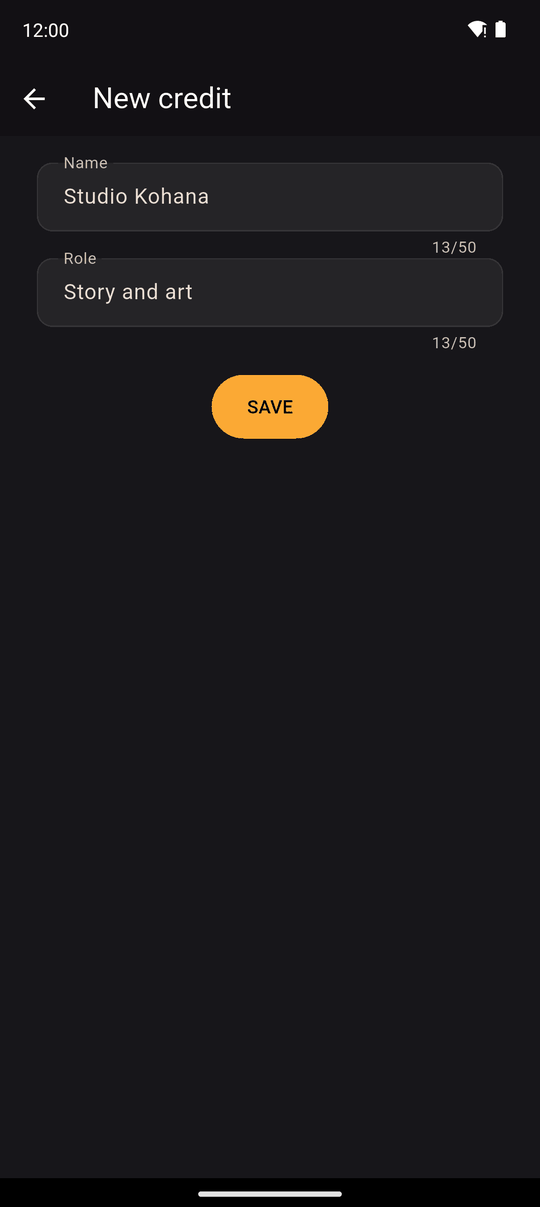
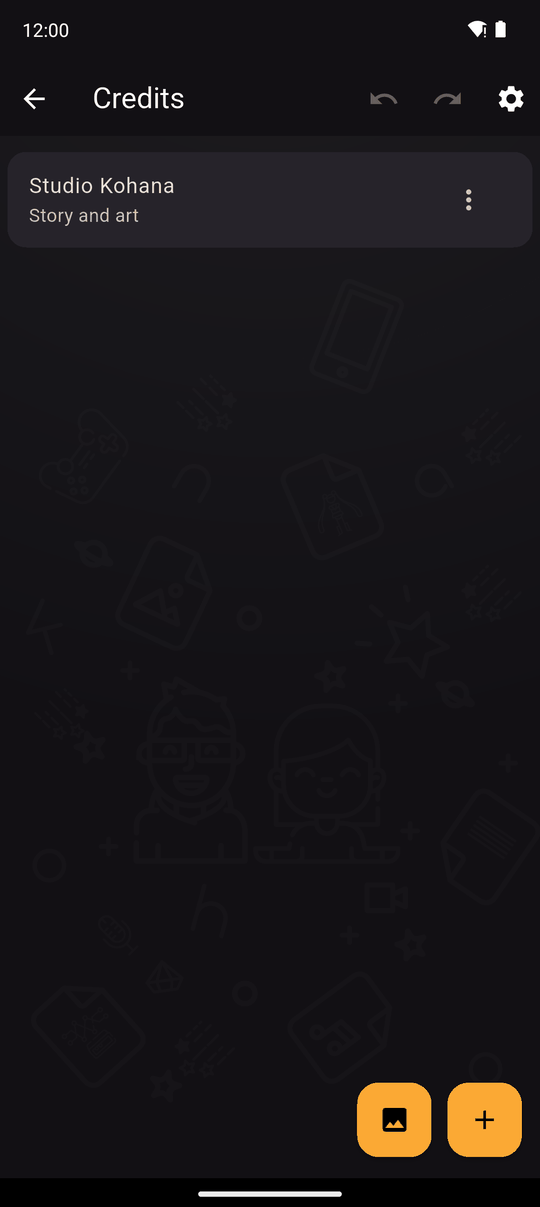
- + adds a credit: a Name (up to 50 characters) and a Role (up to 50 characters), for example Mika and Background art.
- The image button adds a Picture, such as a logo. Use Change picture to replace it, and a slider to size it from 0.3 to 2.5 times.
Tap a credit to Edit it, or Delete it. Drag entries to reorder them. The tab is empty at first, with a hint to tap + to add a credit.
Credits settings
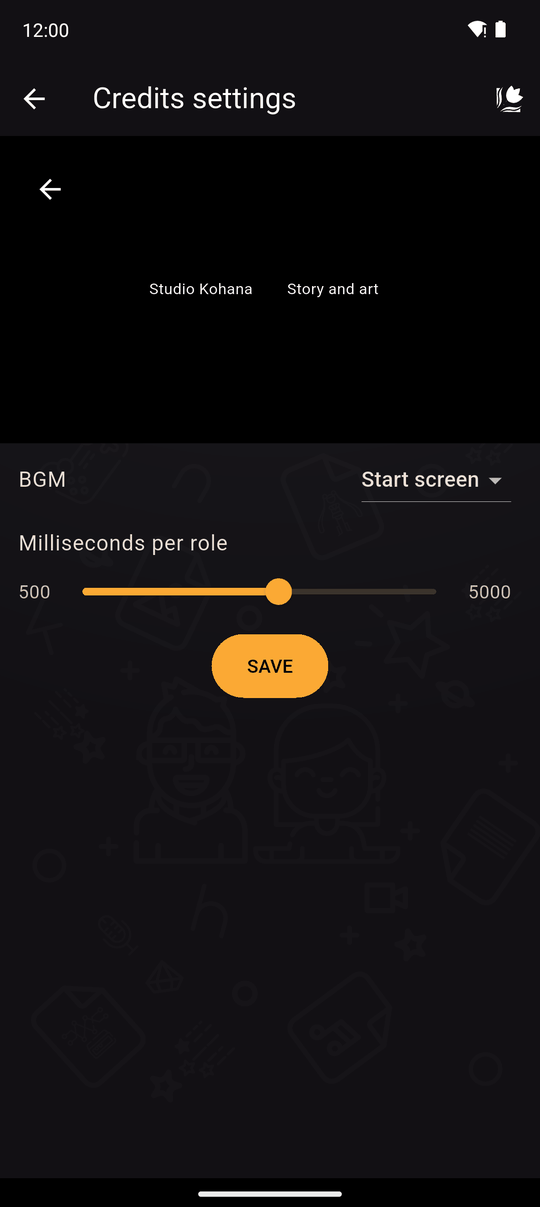
Tap the gear in the top bar for Credits settings:
| Setting | Details |
|---|---|
| BGM | The music while the credits roll: the start screen's music, one of your BGM tracks, or a Custom file |
| Volume | Loudness of the chosen track |
| Milliseconds per role | How fast the credits scroll: 500 to 5000, per credit |
A live preview above shows the result. Tap Save to keep your changes.
In the player
When the story ends, the credits scroll by themselves. Readers can leave them early instead of waiting, and can open the credits again from the reader's settings. See Player settings.
Tips
- Credit yourself. Everyone reads the credits once they've finished.
- For a game jam or collaboration, list roles clearly so people get the recognition they earned.
- Credit text can be translated.
Related
Start screen · Translations · Chapters and scenes
Last updated: