


Modify variable
The Modify variable action changes a variable directly, without the reader having to make a choice. Use it for things that just happen: gaining an item, a score going up, a flag turning on.
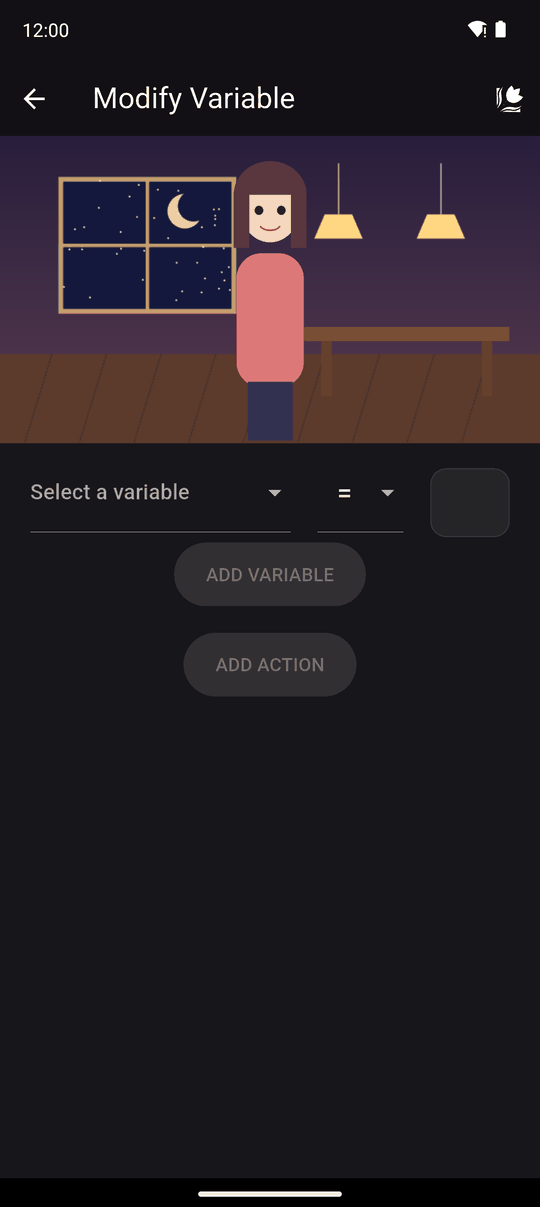
Settings
| Setting | Details |
|---|---|
| Variable | Pick one (Select a variable) or create New variable (Variable name) and choose its type |
| Operator | What to do to the variable (see below) |
| Value | A whole number, or text for a Text variable |
Tap ADD VARIABLE to add the change to the action. One action can hold several changes, shown as chips you can tap to edit or remove. ADD ACTION stays disabled until there is at least one.
Operators
| Operator | Meaning | Example |
|---|---|---|
= |
Set the variable to the value | door_open = 1, name = Sam |
+ |
Add | gold + 10 |
- |
Subtract | gold - 3 |
* |
Multiply | gold * 2 |
/ |
Divide | gold / 2 |
Text variables only have =. Numeric variables allow all of them. Any variables allow every operator, but with no safety checks, so a variable can end up holding the wrong kind of value. See Variables.
What a variable starts as
A variable that has never been set counts as 0 when you change it, so gold + 10 on a new variable gives 10. If a variable holding text is changed with a number operator, it starts again from 0.
Division can make decimals. They are kept as decimals for conditions, but shown in text as whole numbers (rounded).
The same changes elsewhere
The exact same variable changes are available on every choice and every interactive area, so you rarely need a separate Modify variable action. Use this action when nothing the reader did caused the change.
Related
Variables · Conditions · Choices · Set random value
Last updated: