


Scenery
The SCENERY tab holds your background images: rooms, streets, skies, anything the story happens in front of.
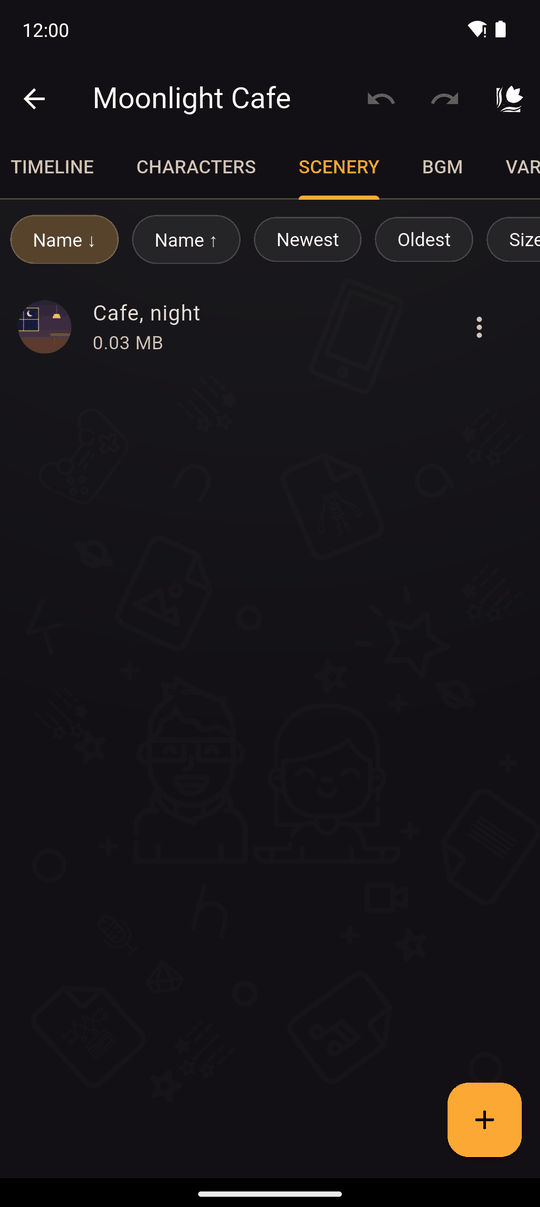
Add a scenery
- Open the SCENERY tab and tap +.
- Enter a Name/Location. It can't be empty and must be different from your other sceneries.
- Pick an image from your device.
- Tap Save.
You can also add one while creating a Scenery action by choosing New scenery.
Supported image formats: PNG, JPG, JPEG, GIF, BMP, WBMP and WEBP. See Importing images, audio and video.
Edit and delete
Open an item's menu to Edit or Delete it. The list shows each item's size, and you can sort by name, date or size. Deleting a scenery also removes the Scenery actions that used it. Undo brings them back.
Tips
- Name them by place and time (Classroom, day). Lists get long quickly.
- One image per look. Use separate sceneries for day and night versions of the same place.
- Use images that match the shape of a phone or tablet screen, so nothing important is cropped.
Related
Scenery action · Characters · The editor's tabs
Last updated: