


Characters
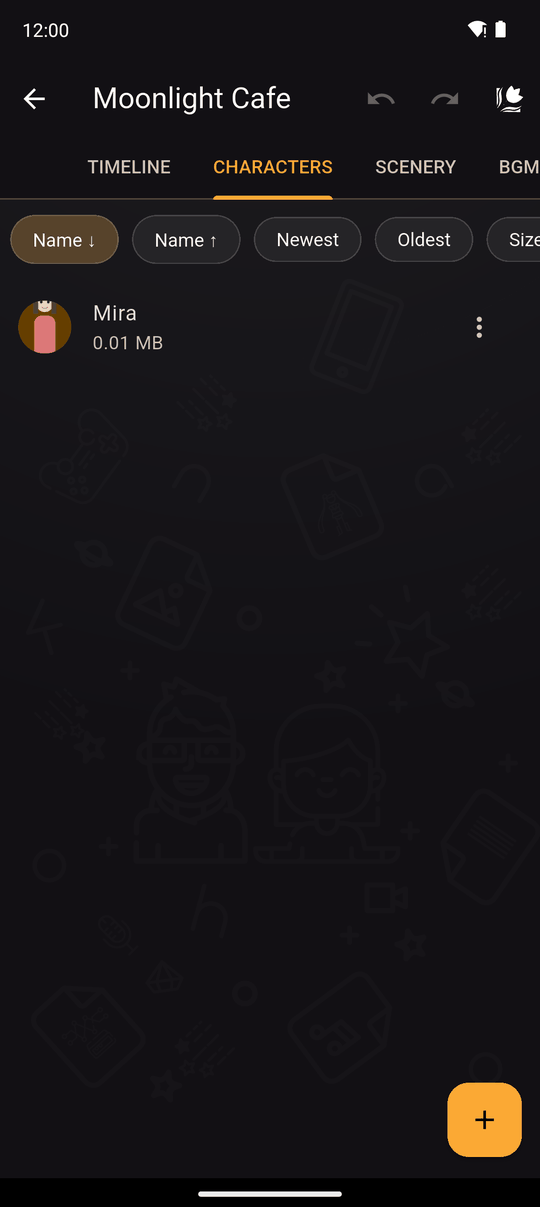
The CHARACTERS tab is your cast. Each character has a name, an optional description and one or more expressions.
Add a character
- Open the CHARACTERS tab and tap +. The tab is empty at first, with a hint to tap + to add a character.
- Enter a Character name (up to 50 characters). It can't be empty and must be different from your other characters.
- Optionally add a Character description (up to 500 characters), as a note about who this is.
- Add an expression, described below.
- Tap Save.
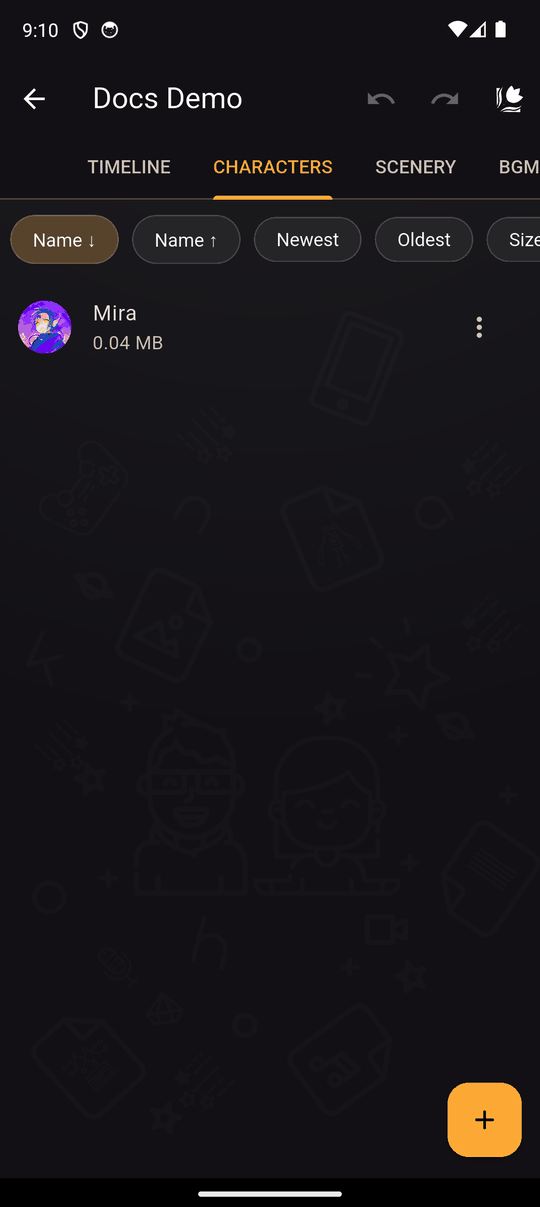
Characters can also be created on the spot when you add a Characters action, so you don't have to visit this tab first.
Expressions
An expression is one image of the character: neutral, smiling, angry, dressed for winter. Each has an Expression name (up to 50 characters, unique within that character) and an image.
Open a character and tap the image button at the top right to see its Expressions: each one's picture, name and size.
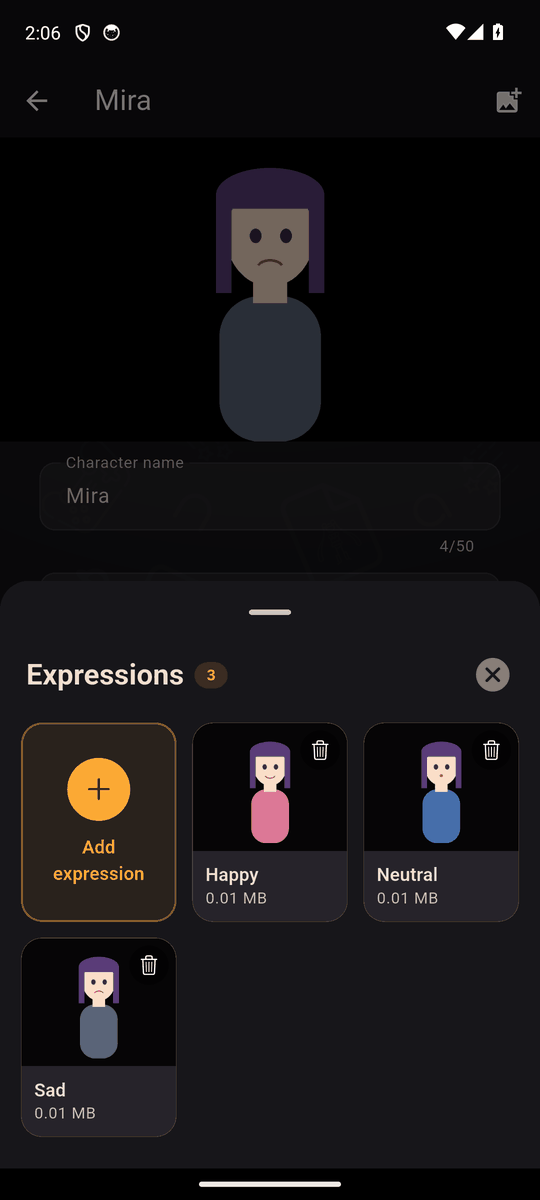
- Tap Add expression to add more.
- Tap an expression to change its name or image.
- Tap an expression's bin to delete it, after you confirm.
- Your list of expressions is what you choose from in a Characters action (Select an expression).
Supported image formats: PNG, JPG, JPEG, GIF, BMP, WBMP and WEBP. Transparent backgrounds work best with PNG or WEBP. See Importing images, audio and video.
Rename and delete
Open a character's menu to Edit or Delete it. Deleting a character also deletes its expressions and removes it from the Characters actions that used it. Text actions that named it are kept but lose their speaker, so re-check your lines. Undo brings the character back. Back up first if you're unsure. See Undo and redo.
Tips
- Use expressions for moods, not new characters. It keeps your list small.
- Use images of the same size and framing for one character, so they line up when the expression changes.
- The character's name is what the text box shows when they speak. Use the Text action's Other option for a name that isn't in your cast.
Related
Characters action · Text action · The editor's tabs
Last updated: