


Variables
A variable is something your story remembers: how many points the reader has, whether they took the key, the name they typed. Variables are what make choices matter.
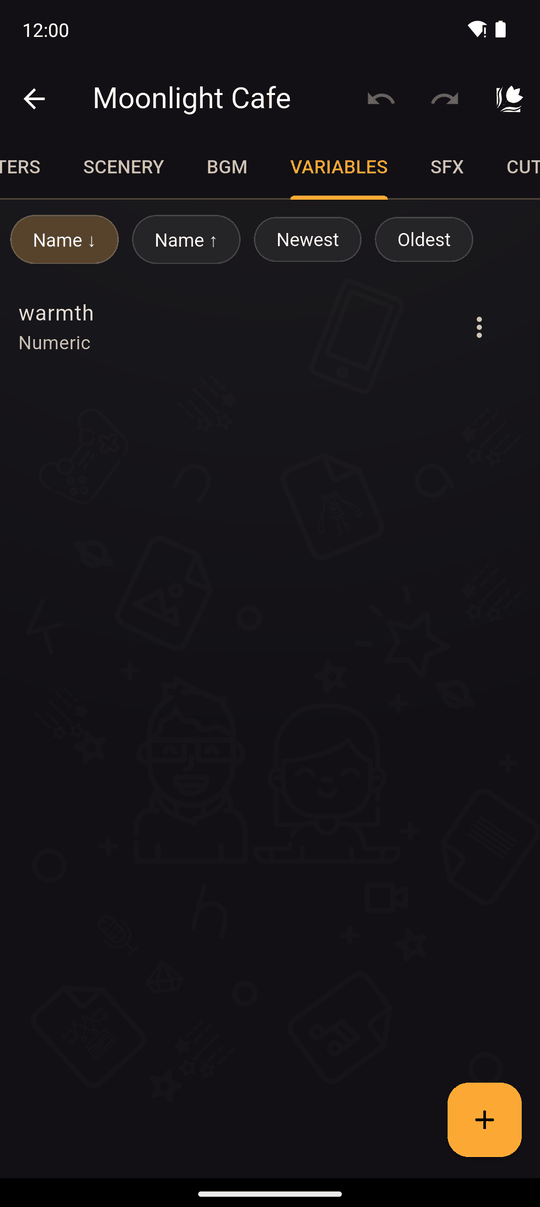
Manage them in the VARIABLES tab, or create them on the spot in any action that uses one.
Add a variable
- Open the VARIABLES tab and tap +.
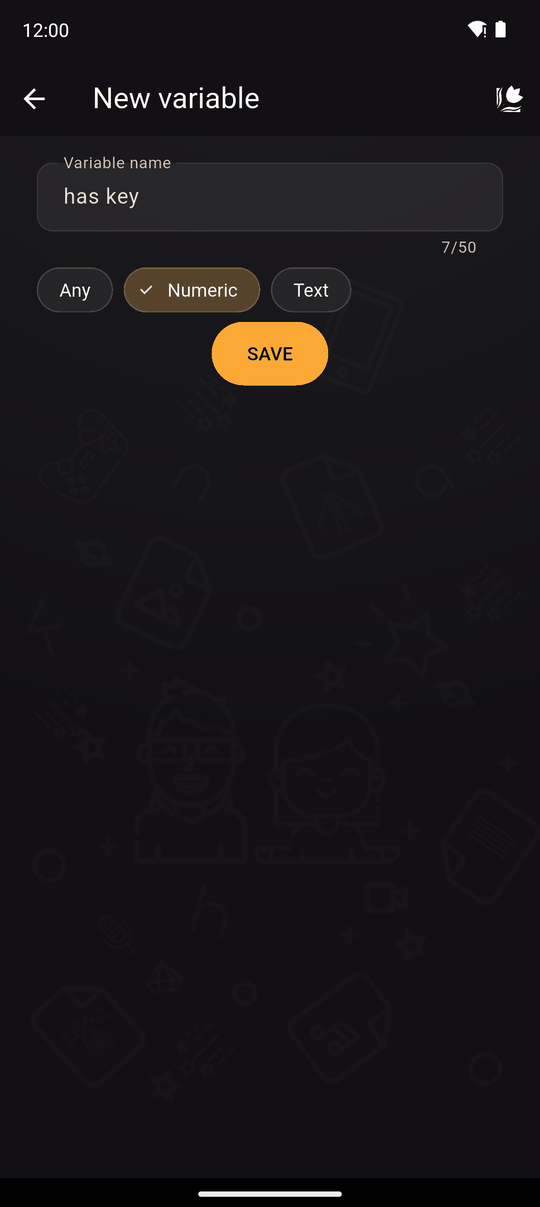
- Enter a Variable name (up to 50 characters). It can't be empty and must be different from your other variables. Names are not case-sensitive, so
Goldandgoldcount as the same. - Choose a type.
- Tap Save.
Types
| Type | Holds | Operators |
|---|---|---|
| Numeric | Whole numbers | = + - * /, and in conditions = <> > < >= <= |
| Text | Words | = to set it, and in conditions = <> and contains |
| Any | Either | Everything, with no safety checks |
The editor uses the type to hide the operators that make no sense, so you can't, for example, multiply a name. The type only guides you while you edit. Any is the default for older novels. It allows everything, but behaviour can be unpredictable if the variable ends up holding a mismatched value, so prefer Numeric or Text.
What a variable holds
- A variable nobody has set yet counts as 0 in conditions and when changed.
- Variables are remembered in the reader's saves, so loading a save restores them. A new game starts with all variables cleared.
- They are used in three places: changing them, testing them and showing them.
The ways to change a variable
- A Choice or Interactive area: changes when the reader picks it.
- Modify variable: changes on its own.
- Set random value: stores a random number.
- Request input: stores what the reader typed.
The ways to use a variable
- Conditions decide whether a chapter, scene, folder or action plays.
- Text variables show a value inside a line.
Testing variables
When you play your own novel in the editor there is a SHOW VARIABLES button (and HIDE VARIABLES) that lists every variable and its current value. When you preview a scene you can set starting values first. See Previewing and testing.
Tips
- Use short, clear names:
trust_mira,has_key,gold. - Use
0and1as "no" and "yes" for flags, and test them with=. - Plan your variables before writing branches. It's easier to add up than to untangle later.
Related
Conditions · Showing variables in text · Modify variable
Last updated: