


Music and sound effects
Two tabs hold your audio: BGM for background music and SFX for short sound effects. They work the same way.
| Tab | For | Plays | Used by |
|---|---|---|---|
| BGM | Music under a scene | Loops until changed | BGM action |
| SFX | Doors, phones, rain, a gasp | Once | SFX action |
Add a track
- Open the BGM or SFX tab and tap +.
- Enter a Name. It can't be empty and must be different from your other tracks in that tab.
- Pick an audio file from your device.
- Tap Save.
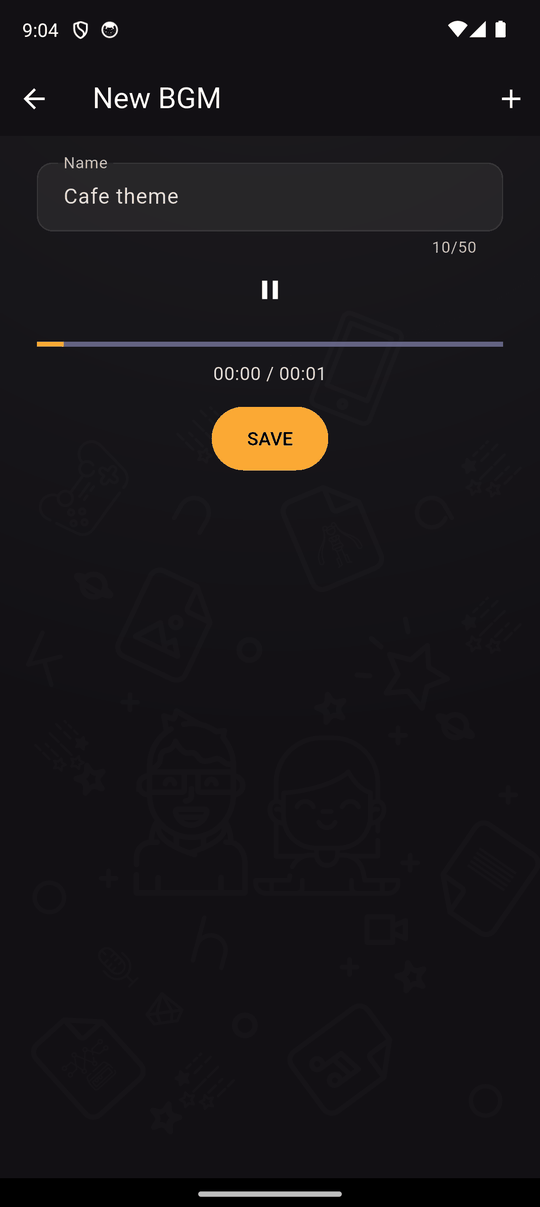
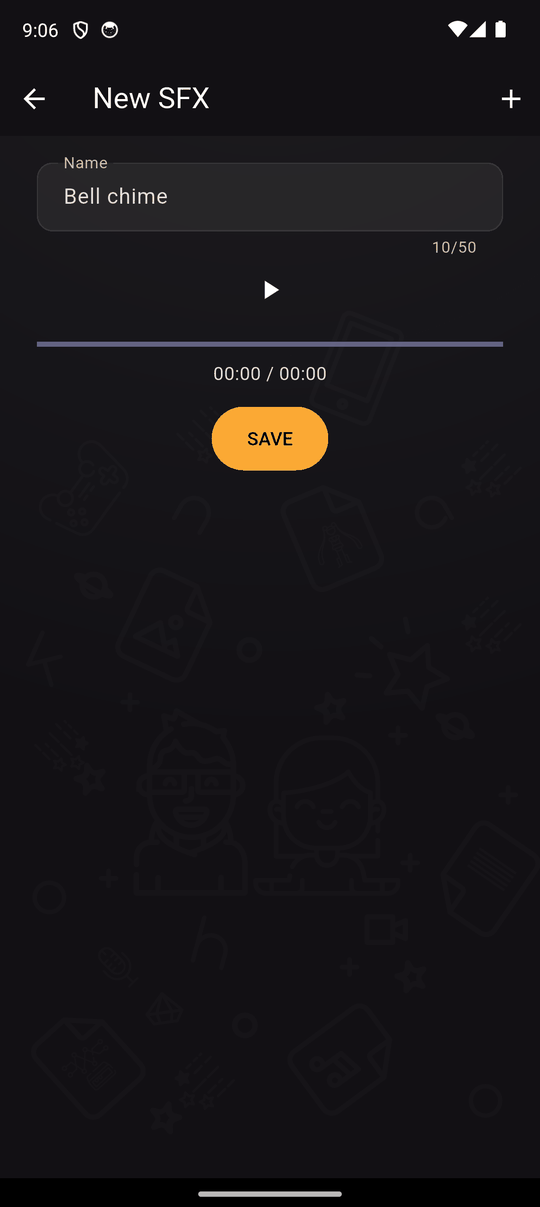
A built-in player lets you listen to it. You can also add tracks while creating a BGM or SFX action, by choosing New BGM or New SFX.
Supported formats: MP3, WAV, OGG, FLAC, M4A, AAC and AC3. See Importing images, audio and video.
Edit and delete
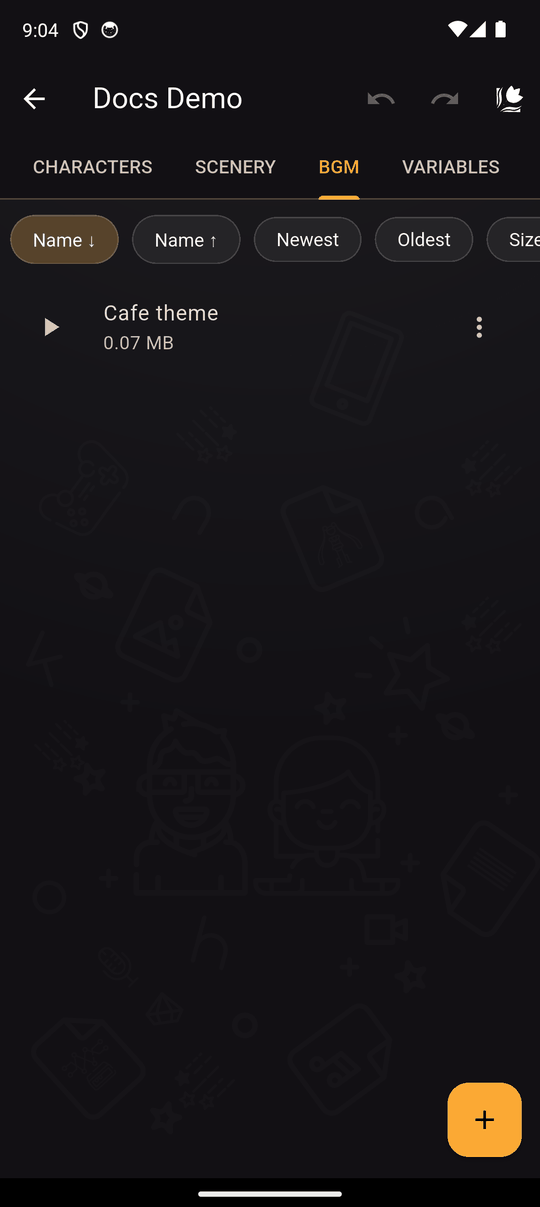
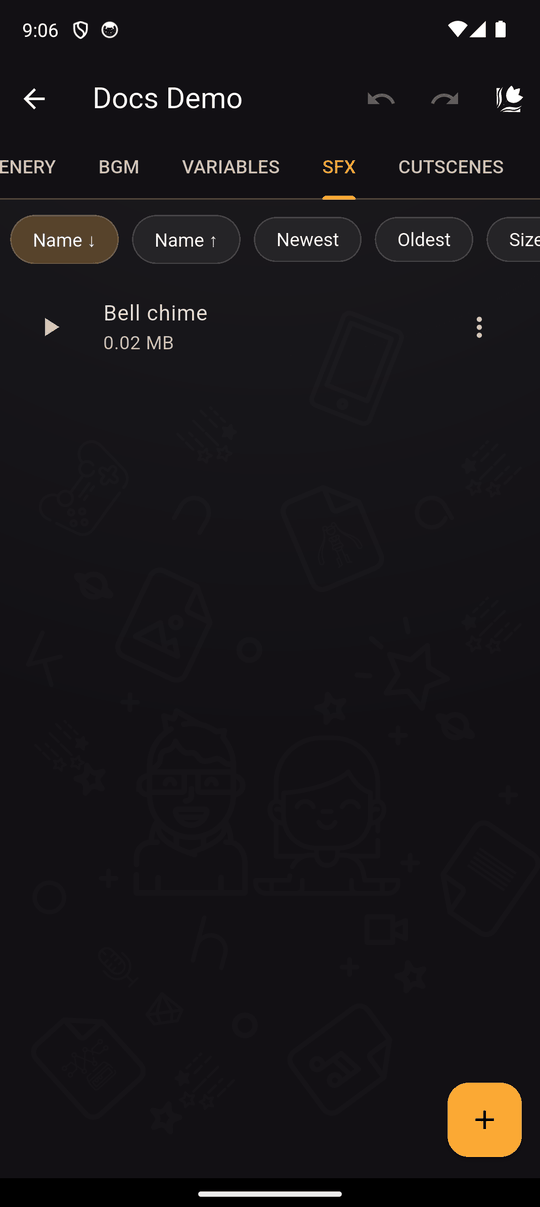
Open an item's menu to Edit or Delete it. The list shows each item's size, and you can sort by name, date or size. Deleting a track also removes the actions that used it. Undo brings them back.
Hearing music while you edit
Turn on Autoplay BGM during scene editing in Settings and the music for the selected action plays as you move around the scene editor.
Tips
- Only use audio you have the right to use. See the Community guidelines.
- Smaller files (MP3, OGG, AAC) keep your novel small. WAV and FLAC are large.
- Loud files make readers reach for the volume, so lower them in the action's Volume setting rather than editing the file.
Related
Last updated: