


Start screen
The start screen is what readers see when they open your novel, before the story: your background, a piece of music and four buttons: NEW GAME, Load game, Settings and EXIT.
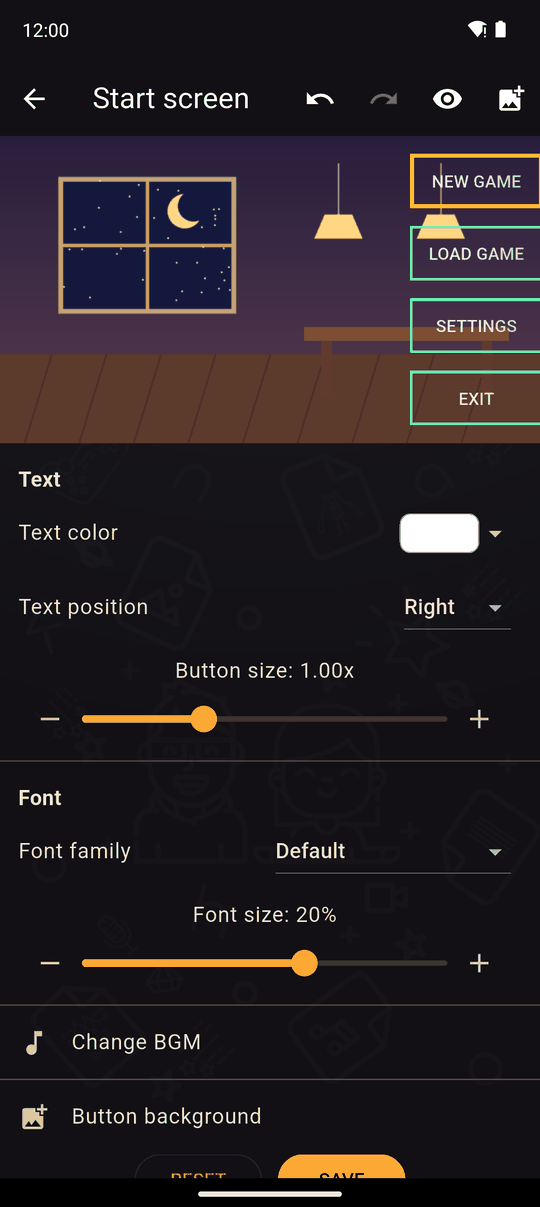
Open it from the top of the Timeline tab.
What you can change
| Setting | Details |
|---|---|
| Background image | The picture behind the buttons. Tap the picture icon in the top bar to choose an image |
| Text color | White, Black or Invisible, or pick any colour |
| Text position | Where the buttons sit: Left, Down, Right, Top or Custom. With Custom you drag each button to exactly where you want it |
| Button size | 0.5 to 2 times the normal size |
| Font and Font size | The font family and the size (13 up to the maximum) for the buttons |
| Change BGM | Pick the music that plays on the start screen, and its Volume |
| Button background | An image used behind each of the four buttons |
The eye icon in the top bar shows or hides the coloured hitboxes on the buttons while you work. Readers never see them.
Invisible text
Invisible hides the button labels, for artwork that already contains them. It needs a custom button background, so readers can still see where the buttons are. If you choose it without one, the app tells you: Invisible text needs a custom background so players can still see where the buttons are.
Saving and resetting
Tap Save when you're done. Leaving without saving asks Are you sure you want to leave without saving?. Reset returns the screen to the default look, after you confirm. Undo and redo work here too.
Tips
- Leave enough empty space in your background for the buttons.
- Use Custom position to line the buttons up with the art.
- The start screen music can also be reused in the credits.
Related
Credits · GUI · Chapters and scenes
Last updated: