


Interactive areas
Interactive areas let the reader tap the screen itself: a door, an object, a character. Like Choices, each area can change variables when tapped.
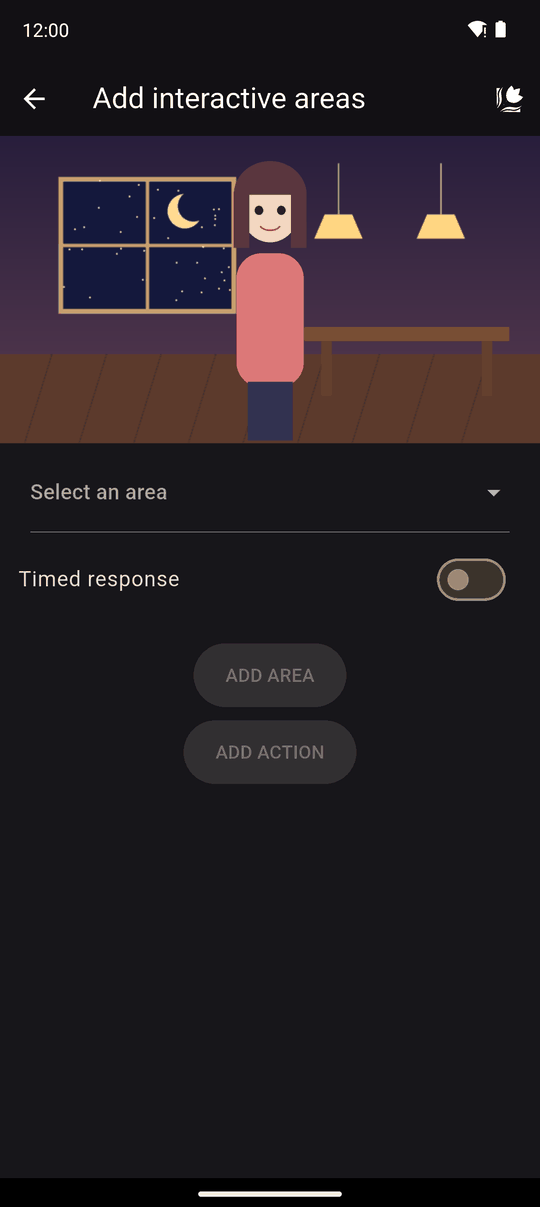
Settings
Tap ADD AREA for each area, then pick it with Select an area. REMOVE AREA deletes the one you are editing.
| Setting | Details |
|---|---|
| Show area controls | Opens the position and size sliders |
| Width and Height | The size of the area as a percentage of the screen. New areas start at 20 by 20 |
| Horizontal position and Vertical position | Where it sits, 0 to 100. New areas start at 50 and 50, the centre |
| Variable changes | What tapping this area does to your variables. See Modify variable for the operators |
| Timed response | Optional. 3 to 120 seconds |
| Default area if no response | The area that is "tapped" for the reader if time runs out, or None (no default) |
In the editor's preview, areas are shown as coloured boxes, and you can drag one to place it. The area you are editing is red and the others are blue.
In the player
Areas are invisible to the reader. They are transparent tap zones, so you need to show the reader where to tap, for example by placing them over a background object or a character.
When an area is tapped, its variable changes are applied and the story moves to the next action. The reader can only tap once. As with choices, a timed response has no visible countdown.
Tips
- Make areas big enough for a thumb. Very small areas are frustrating on a phone.
- Drop hints in the text ("something on the desk catches your eye") so readers know they can tap.
- Combine with Conditions to react to what was tapped in later scenes.
- If you want several things to be explored in any order, use Go to with Come back here.
Related
Choices · Variables · Conditions
Last updated: