


GUI
The GUI tab controls how your novel looks while it is read: the text, the text boxes, the choice buttons and the input box. The top half of the screen is a live preview, and everything you change below updates it straight away.
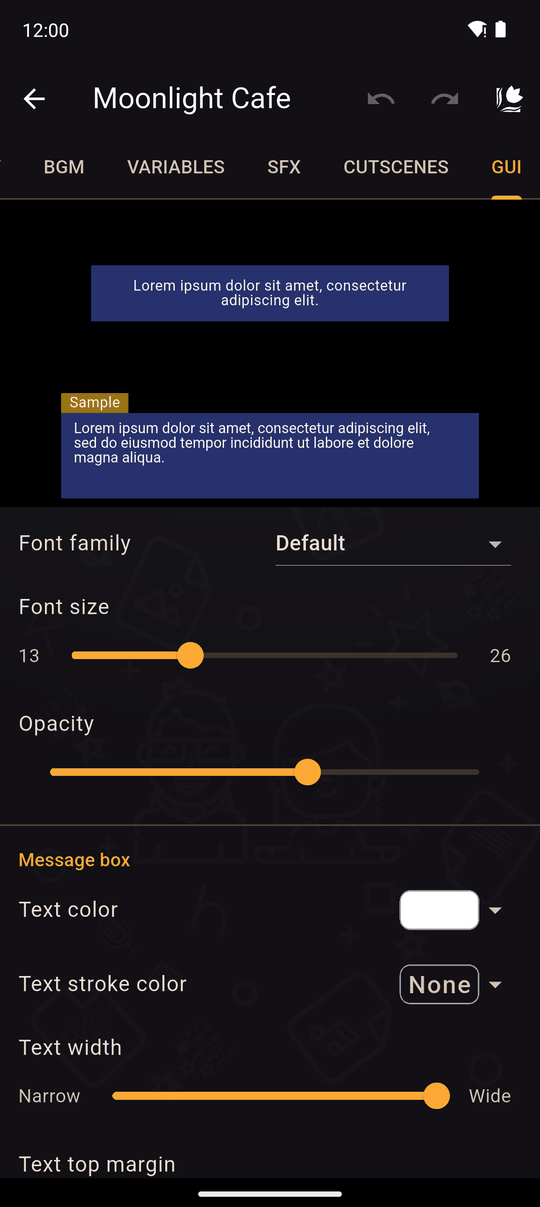
Text (all boxes)
| Setting | Details |
|---|---|
| Font family | Ten built-in fonts (Audiowide, Bangers, Libre Caslon Display, Medieval Sharp, Merienda, New Rocker, Passero One, Petit Formal Script, Press Start 2P, Turret Road), the app's Default font, or Custom to pick a font file from your device |
| Font size | 13 to 26 |
| Opacity | How see-through the boxes are |
| Text color | Colour of the text |
| Text stroke color and width | An outline around the letters, to keep text readable on busy backgrounds |
| Text width and Text top margin | How wide the text runs inside the box (from Narrow to Wide) and how far it sits from the top |
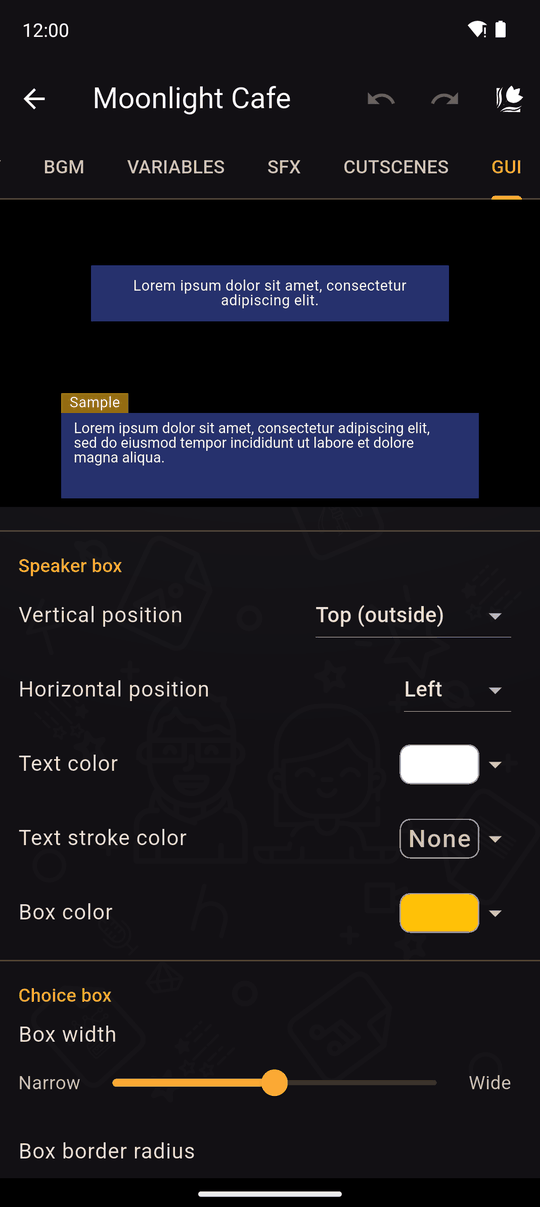
Boxes
Each kind of box has its own settings, under its own heading.
Message box: the box that holds the line of dialogue. - Box color, Box width, Box height (from Short to Tall) - Box shape: Rectangle, Rounded rectangle or Capsule - Box border radius, for the rounded shapes - Box horizontal position and vertical position - Text color and Text stroke for this box
Speaker box: the small box with the speaker's name. - Text color, Text stroke color, Box color and Box border radius - Vertical position: Top (outside), Top (inside), Bottom (inside) or Bottom (outside) relative to the message box - Horizontal position: Left, Center, Right or Custom
Choice box: the buttons in a Choices action. Text color, Box color, Box width and Box border radius.
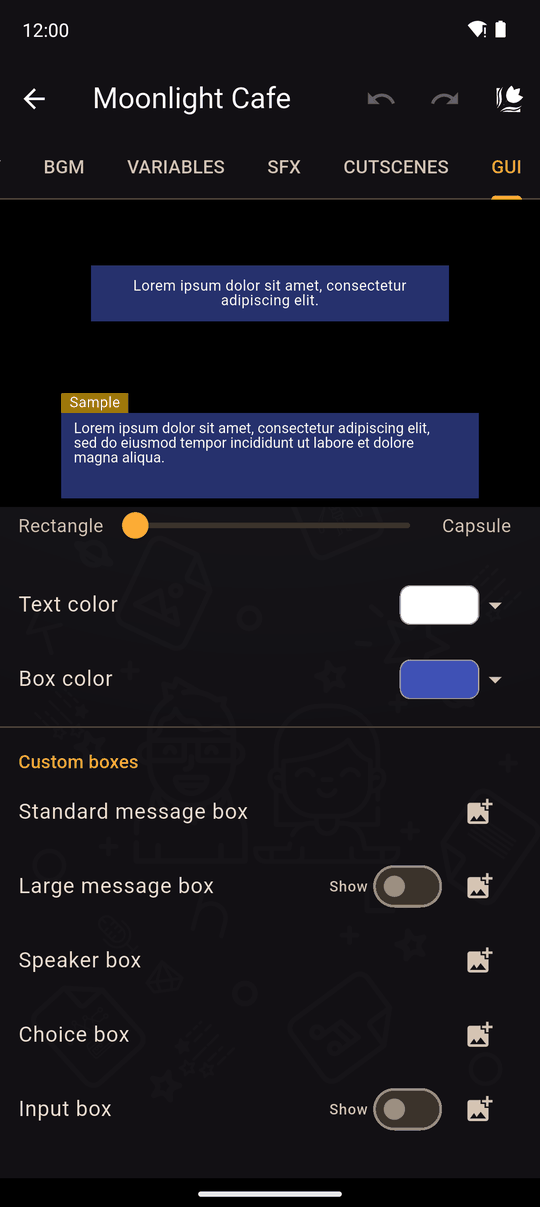
Input box: the field in a Request input action. Text color and Box color.
Use Show next to the large message box or the input box to switch the preview to that one.
Custom boxes
Under Custom boxes you can replace any box with your own image: the Standard message box, Large message box, Speaker box, Choice box and Input box. Pick an image for each. The image is shown instead of the drawn box, and the bin removes it. Sizes are shown so you can watch your novel's size.
Undo
Every change here can be undone with the top-bar Undo and Redo. See Undo and redo.
Tips
- Check contrast: a bright box colour with white text is hard to read on a phone in sunlight.
- Add a stroke to make text readable on any background.
- The preview uses your novel's own background and characters, so scroll to see how it looks with different ones.
- A custom font ships with your novel. Only use fonts you have the licence to redistribute.
Related
Start screen · Text action · Choices
Last updated: