


Playing a novel
Start a novel from the Library, from a novel's page (Play) or from the Workshop (Preview/Play). Novels that have a start screen open on it first; otherwise they begin straight away.
The start screen
If the creator gave the novel a start screen, it shows up to four buttons:
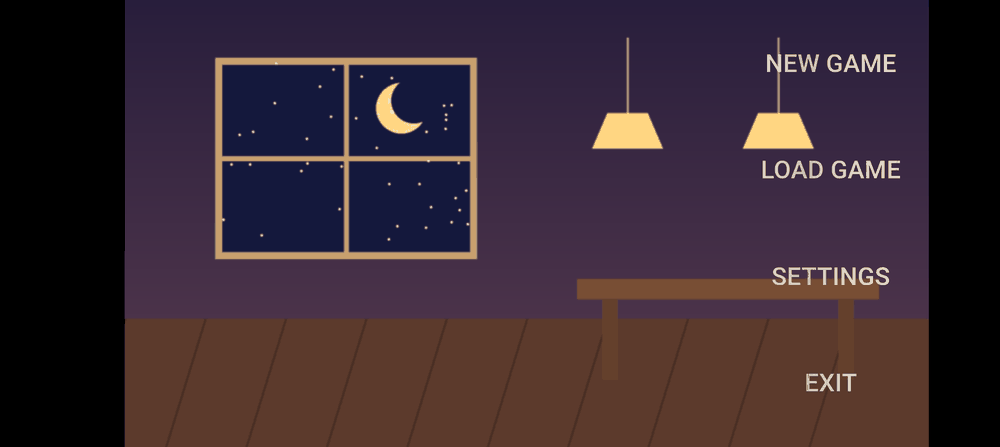
- NEW GAME starts from the beginning.
- Load game opens your saved games.
- Settings opens in-game settings.
- EXIT leaves the novel.
Reading
- Tap anywhere on the scene to go to the next line.
- While a line is still typing out, a tap finishes it instantly; tap again to continue.
- Text can contain values from the story, such as a name the player entered or a score.
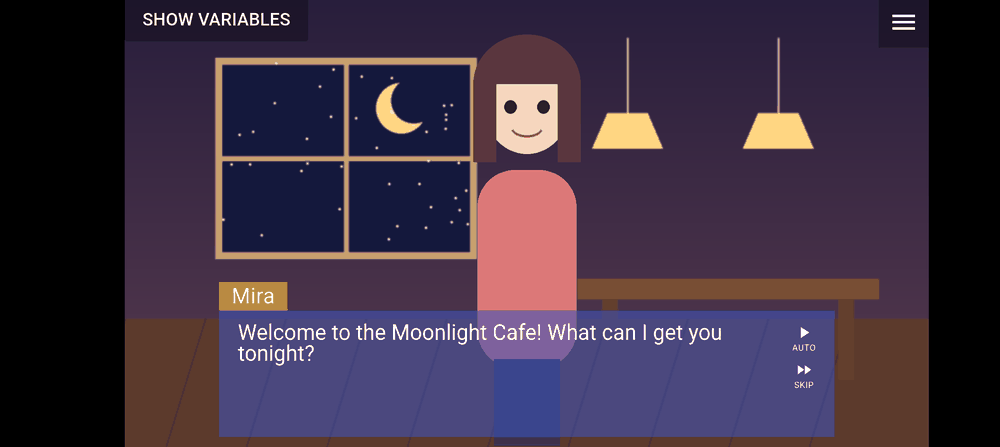
Auto and Skip
Two icons sit by the text box:
- Auto turns pages for you. The wait per line is between about 2 and 6 seconds, set by Auto read speed in in-game settings.
- Skip fast-forwards through text you have already read. It stops at anything you haven't seen yet, and at every choice or question, so you never skip past a decision by accident.
Auto and Skip switch themselves off when you open Log, Save, Load or Settings, and when a new scene begins, so turn them on again if you want them.
The menu
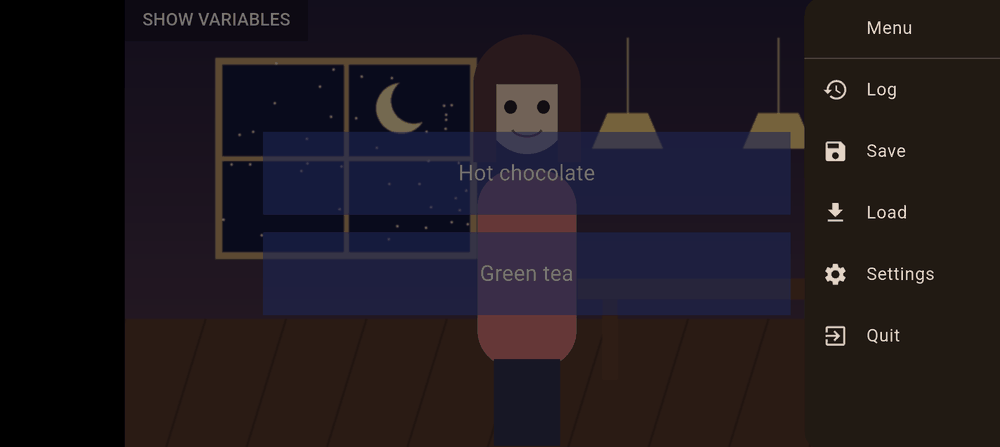
The menu button at the top of the screen opens:
| Item | What it does |
|---|---|
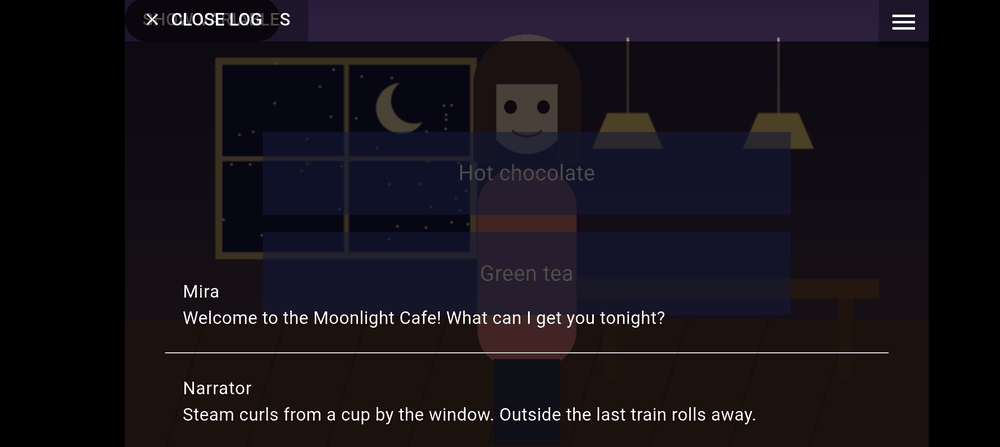
| Log | Shows the lines you have read in the current scene. CLOSE LOG returns to the story. |
| Save | Saves your place. See Saving and loading. |
| Load | Loads a saved place. |
| Settings | Text speed, language, volume and credits. |
| Quit | Leaves the novel after you confirm. |
Choices, areas and questions
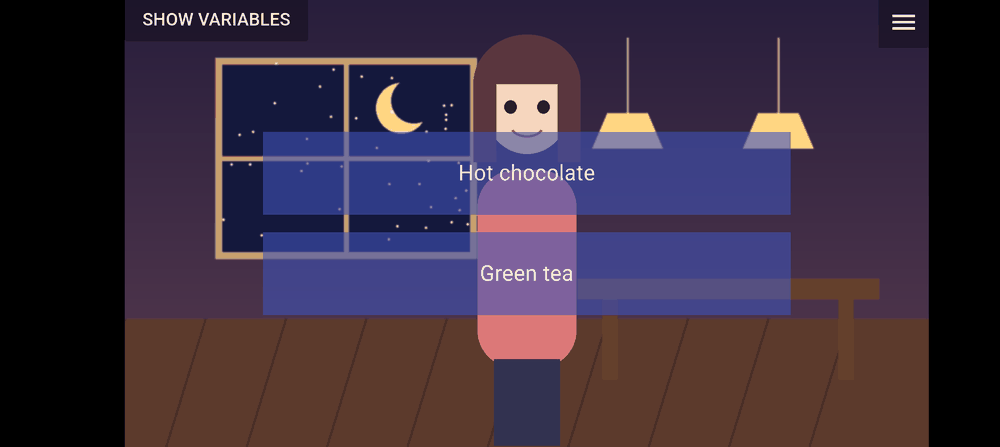
- Choices appear as buttons; tap one to continue. A choice can change the story's variables.
- Interactive areas are invisible regions of the scene you tap.
- Input questions show a text box; you must answer before continuing (Answer required).
- Some of these are timed. When the time runs out, the creator's default is chosen for you; if the creator set no default, nothing happens until you respond.
Cutscenes
Cutscenes are full-screen videos. You can skip one only after you have watched it once (creators can always skip while testing).
Last updated: