


Library
The Library tab lists every novel stored on your device that you can play.
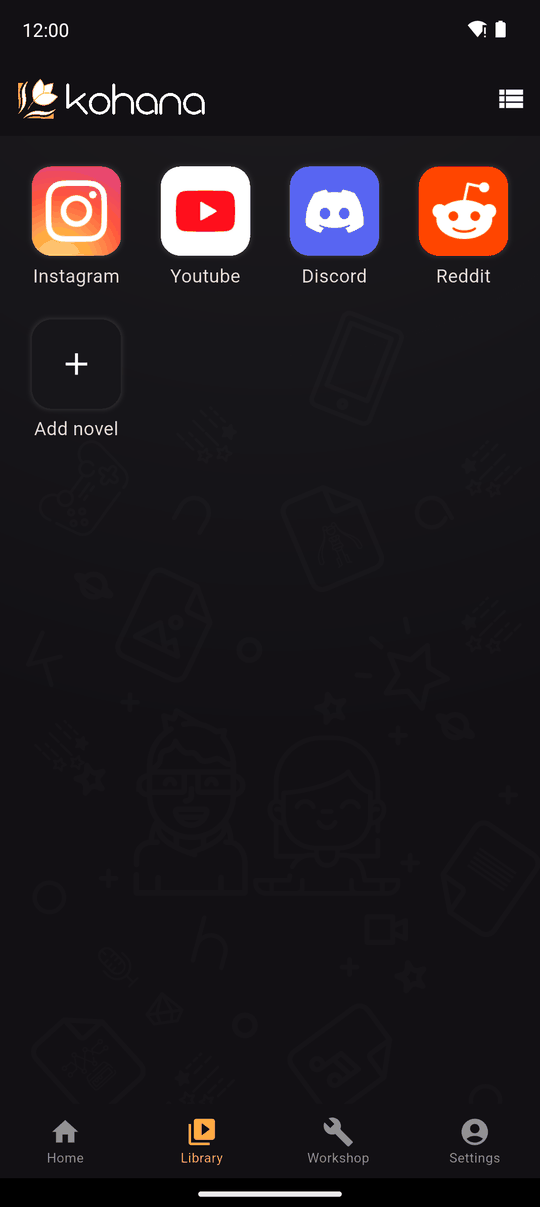
What goes in the Library
- Novels you downloaded from Home.
- Novels you added from a file with Add novel (a
.kohapackage a friend sent you, for example). - The Sample novel, if you choose to download it.
Novels you are making yourself live in the Workshop, not the Library.
Playing
Tap a novel to play it. The options menu on each novel also has Play and Delete; deleting removes the novel from your device after you confirm.
Sorting
Use the sort chips at the top to order the list: Newest, Oldest, Title (ascending or descending) or Size.
Adding a novel from a file
Tap + (the Add novel button) and pick a novel file. Kohana reads it and tells you where it went:
| File | Goes to | Why |
|---|---|---|
.koha (a Kohana Package) |
Library: Novel successfully added to the library | A play-only copy, made with Share |
.kohab (a Backup) |
Workshop: Novel successfully added to the workshop | An editable copy, made with Backup |
.kocho |
Handled as an older-format novel | Files from before Kohana's rebrand still open |
If the file is not a novel, or is damaged, you will see This file is not a novel or became corrupted. You can also open a novel file straight from another app (for example your phone's file manager) using Open with Kohana.
If a file was made by a newer version of Kohana than yours, the app tells you a newer version is required to open it. See App updates.
Private links
A friend can also share a novel with you as a private link. Opening one in Kohana downloads it and adds it to your Library. See Private share links.
Last updated: