


Conditions
A condition is a rule that decides whether something plays. Attach conditions to a chapter, a scene, a folder or an action, and the reader only sees it if every condition is met.
Conditions test variables, so together they make choices lead somewhere.
Add conditions
Open the item's menu and tap Conditions. For each condition:
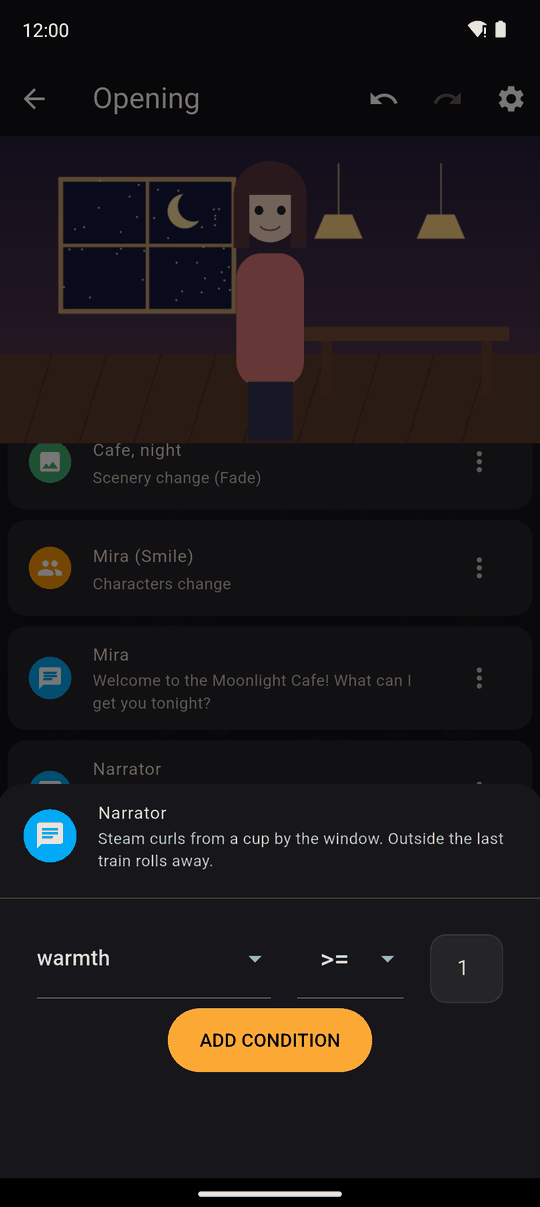
- Pick a variable (Select a variable).
- Pick an operator.
- Enter a value.
- Tap ADD CONDITION.
The conditions appear as chips you can tap to edit or remove. You can also select several actions at once in the scene editor and add conditions to all of them.
All conditions must be met
If an item has several conditions, all of them must be true for it to play. There is no "or". For "or", make two folders or two actions.
Operators
| Operator | Meaning | For |
|---|---|---|
= |
equals | numbers and text |
<> |
is different from | numbers and text |
> |
greater than | numbers |
< |
less than | numbers |
>= |
greater than or equal | numbers |
<= |
less than or equal | numbers |
⊃ |
contains | text |
⊅ |
does not contain | text |
Text comparisons are case-sensitive: Sam and sam are different. A variable nobody has set yet counts as 0. Comparing text with > < >= <= is never true.
What happens when they are not met
| Attached to | If not met |
|---|---|
| An action | That action is skipped |
| A folder of actions | Everything in the folder is skipped |
| A scene | The whole scene is skipped, and the story moves on to the next |
| A chapter | The whole chapter is skipped |
Conditions are checked at the moment the reader gets there, using the variables as they are then.
Example: a friendship ending
- Each helpful choice adds 1 to
trust. - At the end, put the good-ending scene in a folder with the condition
trust >= 3. - Put the neutral ending after it. Give that one
trust < 3.
Tips
- Give the good and bad branches opposite conditions so one always plays.
- Test with Preview: set the variable before you start.
- Conditions don't have a visible sign for the reader, so the story should read naturally when they aren't met.
Related
Variables · Actions folder · Go to · Chapters and scenes
Last updated: