


Go to
The Go to action jumps the story to another chapter and scene. Use it to go back in the timeline, skip ahead, or loop.
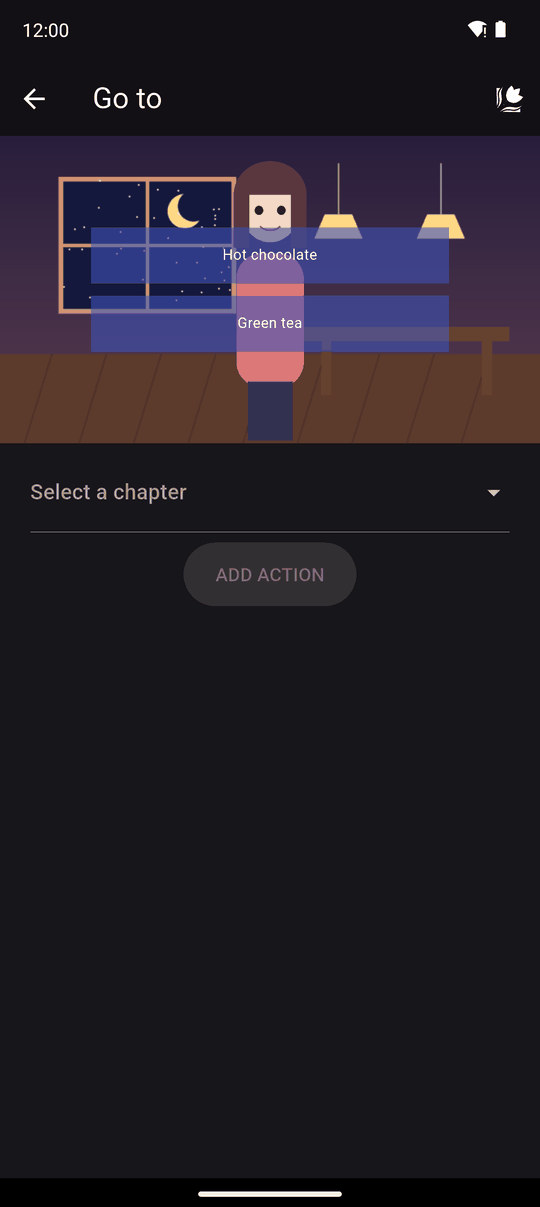
Settings
| Setting | Details |
|---|---|
| Select a chapter | The chapter to jump to |
| Select a scene | The scene to jump to |
| After the scene | Continue there: the story carries on from the target scene onward. Come back here: when the target scene ends, the story returns to the action after this Go to |
The Add action button stays disabled until you have chosen a scene and what happens after it.
What you can build
- Time loops. Send the reader back to an earlier scene until a condition is met.
- Branches. Put Go to after a choice, in a folder guarded by a condition, to send different readers to different scenes.
- Shared scenes. Make one scene, like a shop or a hub, and visit it from many places using Come back here.
In the player
- With Continue there, the new scene plays and the story continues after it as if the timeline were laid out that way.
- With Come back here, the story remembers where it left. When the target scene ends, it returns and continues with the action after the Go to. It can remember several jumps at once and returns from the most recent one first.
- Conditions on the target chapter or scene are not checked again: Go to trusts the jump.
- Go to does nothing in a Preview, so jumps only work when you play the novel from the beginning.
Tips
- If you delete a chapter or scene that a Go to points at, edit the Go to. It has nothing to jump to.
- Loops can trap readers. Always give a way out with a condition.
Related
Conditions · Actions folder · Chapters and scenes
Last updated: