


Previewing and testing
Test as you go. There are three ways to see your novel the way a reader will.
1. The scene editor preview
The panel at the top of the scene editor always shows the scene at the action you selected. Tap different actions to jump around. Fast, and good for checking positions, transitions and backgrounds.
2. Preview a scene
In a chapter, open a scene's menu and choose Preview. A sheet opens where you can set up the story's state, then tap START PREVIEW.
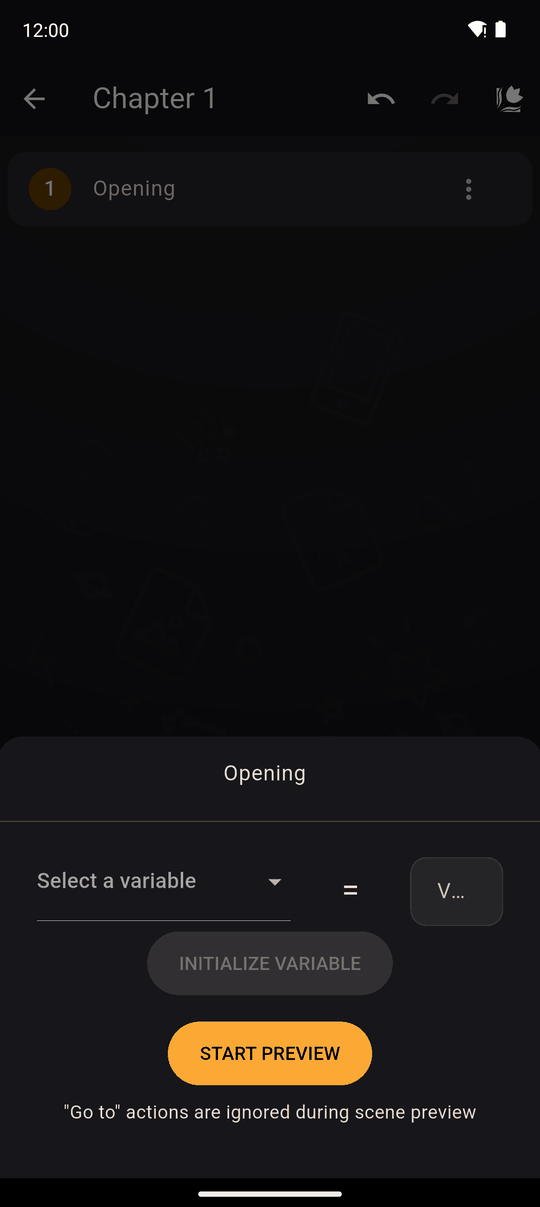
Set variables first. Under the sheet's variable picker choose a variable, enter a value and tap INITIALIZE VARIABLE. Repeat for as many as you need. This is how you test a branch: set trust = 5 and start the preview to see the good ending without playing the whole story.
Things to know about a scene preview:
- Go to actions are ignored. The app tells you: "Go to" actions are ignored during scene preview.
- Only that scene plays. When it ends, the app asks Do you want to replay this scene?.
- The play menu has no Save, Load or Settings, since a preview isn't a real play.
3. Preview or play the whole novel
The novel's menu has Preview/Play. It plays from the beginning like a reader would, with jumps and conditions working normally. Because it is your own novel, you get some extras:
- A Warning appears when you start: Save data during development may become corrupted. Saves made while you are still editing a novel can stop working after you change it, so use them only for testing.
- SHOW VARIABLES / HIDE VARIABLES button on screen lists every variable and its current value, so you can watch your logic work.
- Cutscenes can always be skipped.
Test on a real device
Preview on the same phone or tablet your readers will use, if you can. Check:
- Text fits in the boxes with your chosen font and size.
- Tap targets for interactive areas are big enough.
- Music and sound levels feel right.
- Every choice leads somewhere, including the timed ones.
Before you publish
Play your novel once from start to finish, then read the Community guidelines and see Upload for review.
Related
The scene editor · Variables · Conditions
Last updated: