


The scene editor
The scene editor is where a scene's actions live. It has a preview on top and the list of actions below.
The preview
The preview shows the scene as it would look at the action you selected: the background, the characters on stage, the text box and any choices. A new scene shows Welcome: Here you will preview your scene as you create it.
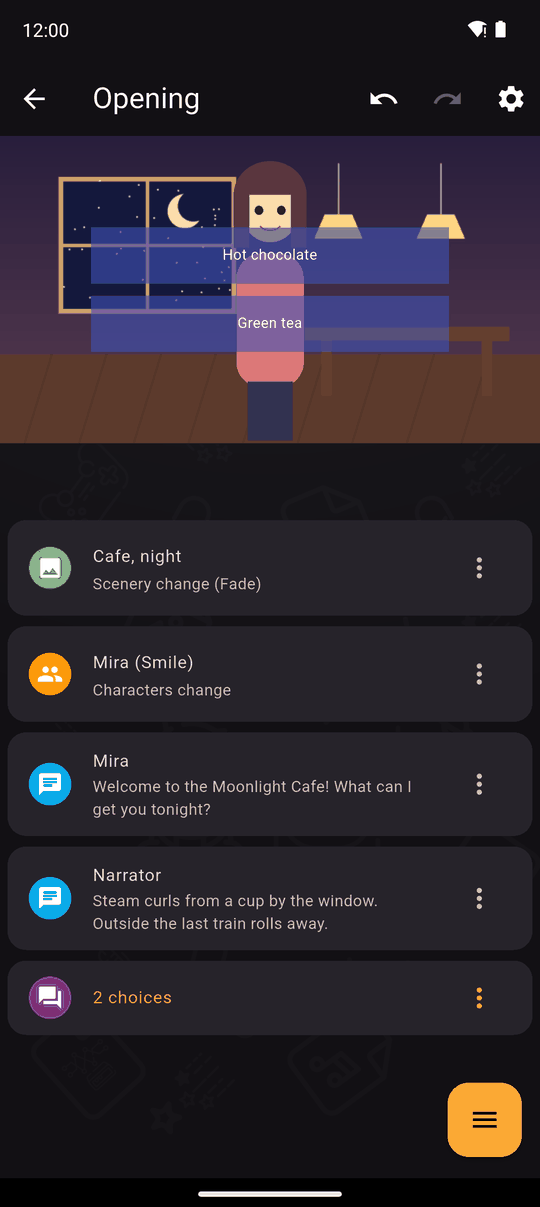
Tap an action to move the preview to it. If you turned on Autoplay BGM during scene editing in Settings, the music for that point plays too.
Add an action
- Tap +. A drawer lists the action types, on three swipeable pages.
- Pick one, fill it in, and tap ADD ACTION.
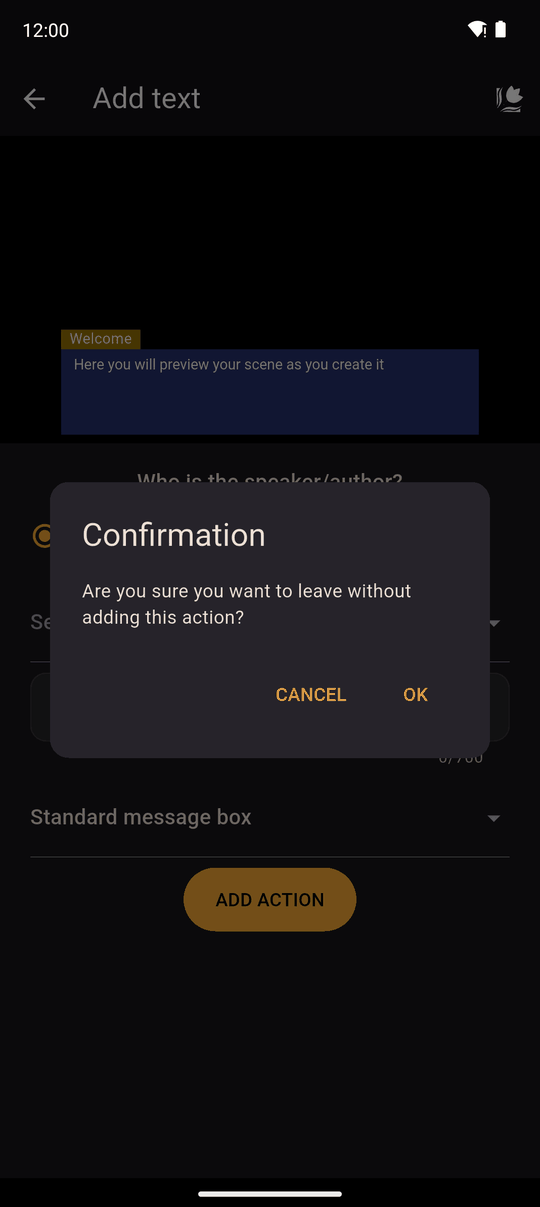
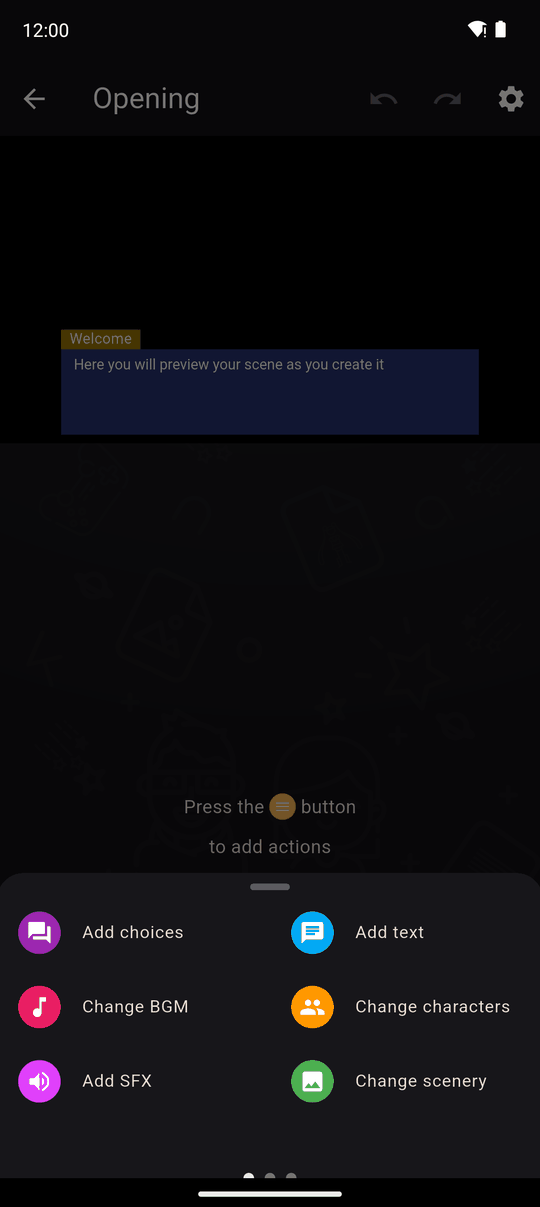
New actions are added after the action currently selected, so you can insert in the middle of a scene. If you leave a half-filled action, the app asks Are you sure you want to leave without adding this action?.
See the actions overview for the list.
Work with an action
Each action has an options menu:
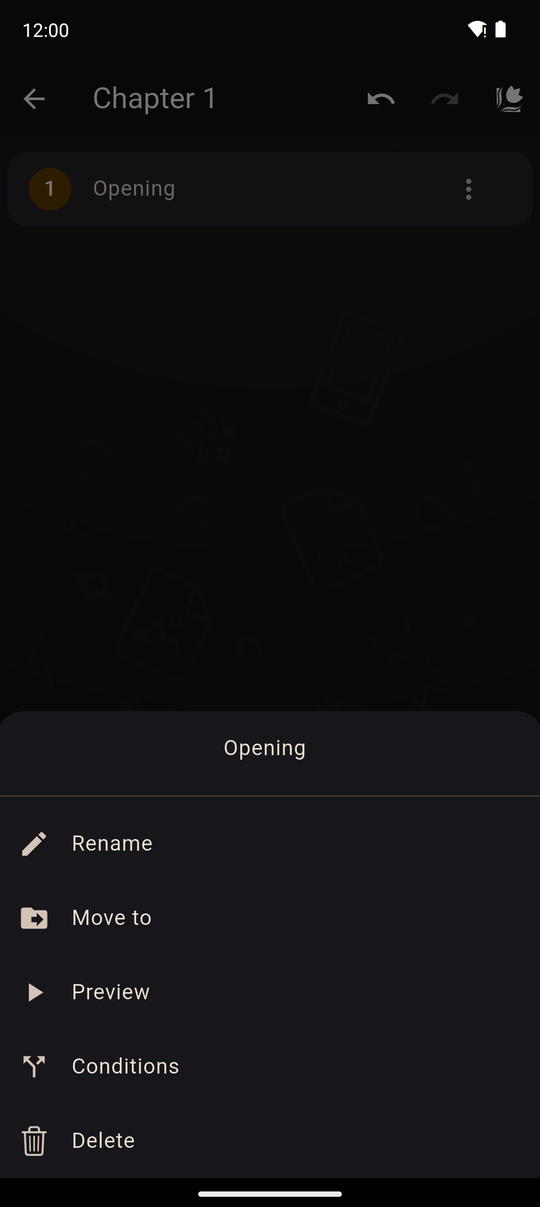
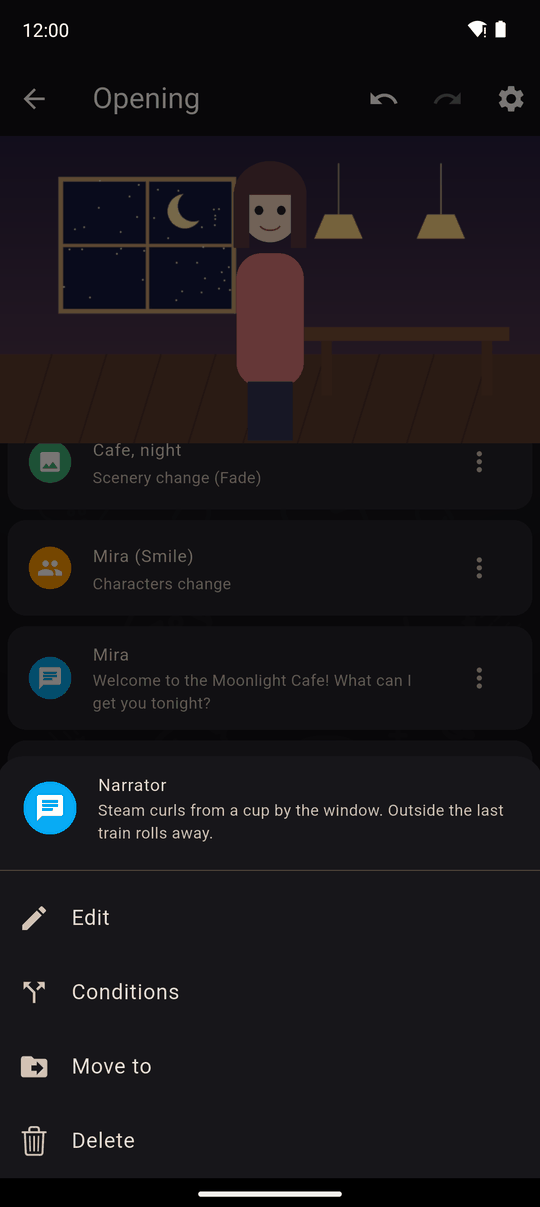
| Option | What it does |
|---|---|
| Edit | Change the action's settings |
| Conditions | Only play it when the story's variables allow. See Conditions |
| Copy | Put a copy of this one action on the clipboard |
| Duplicate | Insert a copy of it right after itself, immediately |
| Move to | Move it into or out of a folder |
| Delete | Remove it, after you confirm |
Drag an action to reorder it.
Copy, duplicate and paste
Copy (in an action's own options menu, above) puts that one action on the clipboard. Duplicate skips the clipboard entirely and inserts a copy right where you are.
To paste, tap + to open the Add Action drawer. Whenever something is on the clipboard, a Paste tile appears first, showing what's there (for example Paste: Choices) so you can always tell what you copied:
Tapping it inserts the copy after the action you had selected, or at the end of the scene if none was selected.
The clipboard isn't tied to the scene you copied from — it stays put while you move between scenes, chapters, even other novels, so you can copy an action in one place and paste it somewhere else entirely, any time before you copy something new over it. A copy keeps everything the action needs: its variables, conditions, timer/On Timeout settings, color and skippable setting, and any asset it references.
Pasting into a different novel than you copied from works too, with one limit: anything that only exists in the original novel (a specific character, piece of scenery, music, sound, cutscene, or another scene it jumps to) can't come along, since the file or scene itself isn't being copied. In that case the app pastes what it safely can and tells you exactly what was left out instead of guessing or breaking — a copied variable is simply recreated fresh in the new novel instead.
Select several actions
Tap the round icon at the left of an action to select it, then tap more. The header shows how many are selected and the toolbar offers:
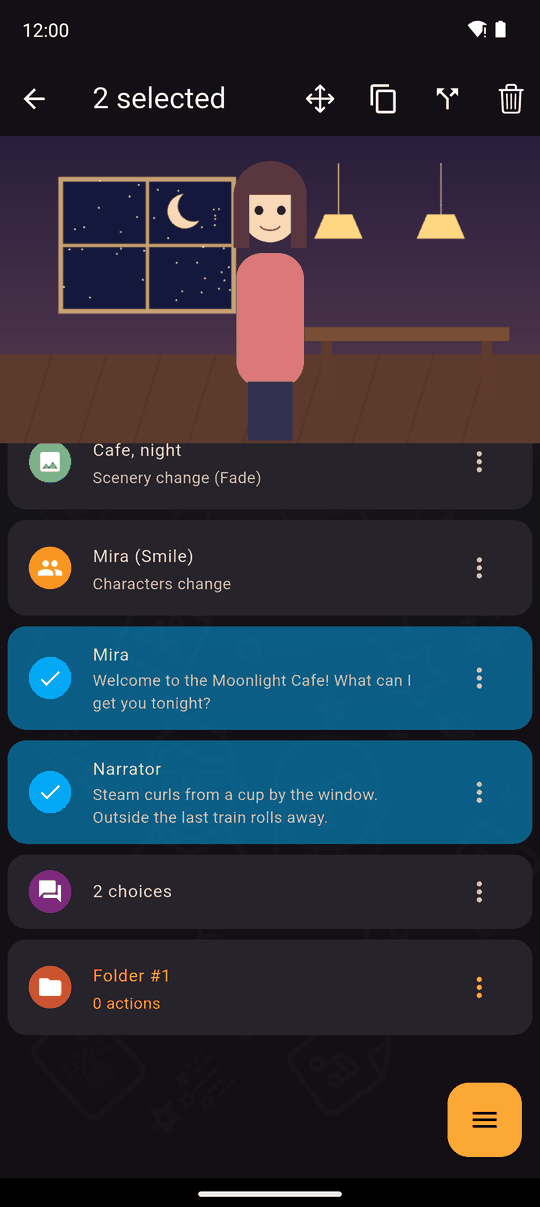
- Cut and Copy, then Paste them (from the app bar's clipboard icon, or the Add Action drawer's Paste tile) where you want them. After a cut, the originals are removed once you paste.
- Conditions for all of them at once.
- Delete for all of them, after you confirm.
Copies made with Copy are independent of the originals. Everything here — including duplicating and pasting a single action — can be undone; see Undo and redo.
Preview from a point
Preview on the scene plays the scene from the start. See Previewing and testing.
Last updated: