


Translations
You can offer your novel in more than one language. Readers pick their language in the player, and your text is shown in it.
The TRANSLATIONS tab is hidden by default. Turn it on with Show translations tab in Settings.
How it works
You don't translate inside the app. Instead you export a spreadsheet, get it translated (or translate it yourself), and import it back:
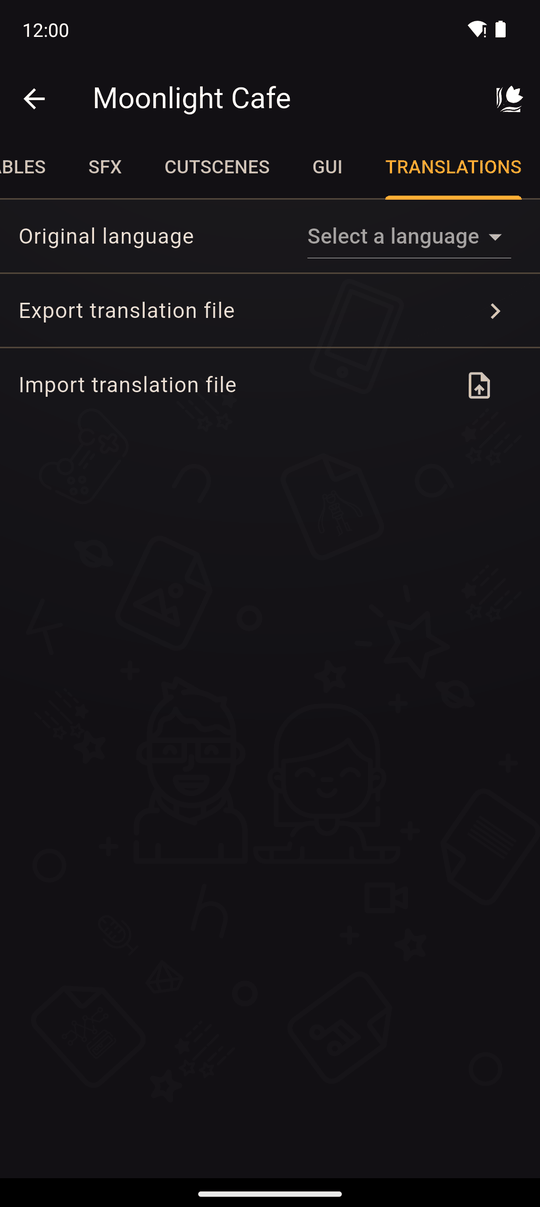
- In the TRANSLATIONS tab, set the Original language of your novel (Select a language). It is the language you wrote it in.
- Tap Export translation file and choose Select languages: the languages you want to add. There are 75 to choose from.
- Kohana creates a CSV file. Open it in a spreadsheet app. The first column is a
key, the second is youroriginaltext, and the rest are the languages you chose, one column per language code. Fill in the translations and keep thekeycolumn exactly as it is.
csv
   key,original,es,fr
   title,My Amazing Novel,Mi Novela Increíble,Mon Roman Incroyable
   chr-Nu8k3QeRIkC7GZ9AiIWA1A,Mira,Mira,Mira
   msg-8pQx2mVeK1TnRz9YoBhP0w,Hello there!,¡Hola!,Bonjour !
   cho-8pQx2mVeK1TnRz9YoBhP0w,Yes,Sí,Oui
Each row's key says what it is: title for the novel's title, chr- for a character name, msg- for a Text action's message, ath- for its speaker, cho- for a choice, pro- for a Request input prompt, crn-/crr- for a credit's name and role.
4. Save the file as CSV, tap Import translation file and pick it.
5. The app reports how many texts were updated (updated successfully), or No texts were updated.
If the file isn't a translation file or is damaged, you'll see This file is not a translation file or became corrupted.
What gets translated
- The novel's title.
- Text actions: the message and the speaker name.
- Character names.
- Choice texts.
- Request input prompts.
- Credits: names and roles.
Images (including text inside images), audio and the GUI are not translated.
Text effects in translations
Text effects appear in the file as tags around the letters they cover, in the original column and in any language you already imported:
key,original,es
msg-8pQx2mVeK1TnRz9YoBhP0w,I <wave>really</wave> mean it,De <wave>verdad</wave> lo digo
- Move the tags to the words that match in your translation, or delete them for no effect. A translation keeps its own effects: a cell with no tags has none, even if the original does.
- The tags are
<shake>,<wave>,<bounce>,<rainbow>,<glitch>,<pulse>,<color>,<bold>,<italic>,<underline>,<strike>and<scramble>, always in English, each closed with</…>. - Nest tags to stack effects:
<wave><rainbow>wow</rainbow></wave>. - Each effect uses the settings it has in the original text (speed, colors and so on), or its default settings if the original doesn't use it.
- A tag that is never closed runs to the end of the text. Anything in angle brackets that isn't one of these tags, such as
<3, stays as text.
Your languages
Each imported language appears in the list with how many texts it contains. Open its menu to Export it again, to fix it in a spreadsheet, or Delete it, after you confirm.
In the player
If a novel has translations, the reader can choose a language in the reader's settings: Original language or one of the languages you added. Texts that have no translation fall back to the original.
Tips
- Finish your story before you export, then translate once. Texts you add later need a new export.
- Never change the
keycolumn, or the text won't be matched. - Machine translation is a good first draft, but have a native speaker read it.
- Keep lines short. Translated text is often longer than the original.
Related
Text action · Credits · Player settings
Last updated: