


The editor's tabs
Opening a novel shows a row of tabs. Each holds one kind of thing.
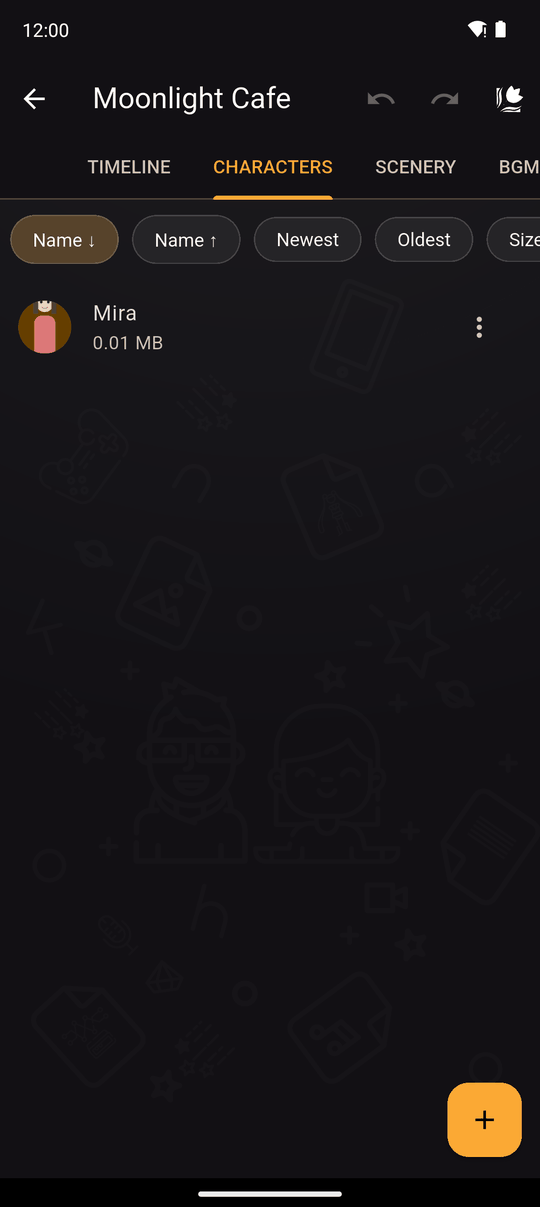
| Tab | What lives there |
|---|---|
| Timeline | Chapters and scenes, plus your novel's Start screen and Credits. See Chapters and scenes |
| CHARACTERS | The people in your story and their expressions. See Characters |
| SCENERY | Background pictures. See Scenery |
| BGM | Background music. See Music and sound effects |
| VARIABLES | Values the story remembers. See Variables |
| SFX | Sound effects. See Music and sound effects |
| CUTSCENES | Full-screen videos. See Cutscenes |
| GUI | The look of the text boxes, choices and fonts. See GUI |
| TRANSLATIONS | Translating your novel. Only shown if you turn it on. See Translations |
Adding, editing and deleting assets
In every asset tab:
- Tap + to add one, give it a Name, and Save. Names must be unique within that tab (This name already exists) and can't be empty.
- Tap an item to edit it; use its menu to Edit or Delete.
- Each item shows its file size, so you can see what makes your novel large.
- Use the sort chips to order the list: Name ↓, Name ↑, Newest, Oldest and Size.
Deleting a scenery, BGM, SFX or cutscene also removes every action that used it. Deleting a character works a little differently; see Characters. You can undo a deletion from the top bar. See Undo and redo.
The top bar
The Undo and Redo buttons live in the top bar of the editor and work across the tabs' lists. See Undo and redo.
Last updated: