


Quick start: make and play your first novel
This walkthrough takes about ten minutes and uses only what the app gives you. Each step links to the full page for that feature.
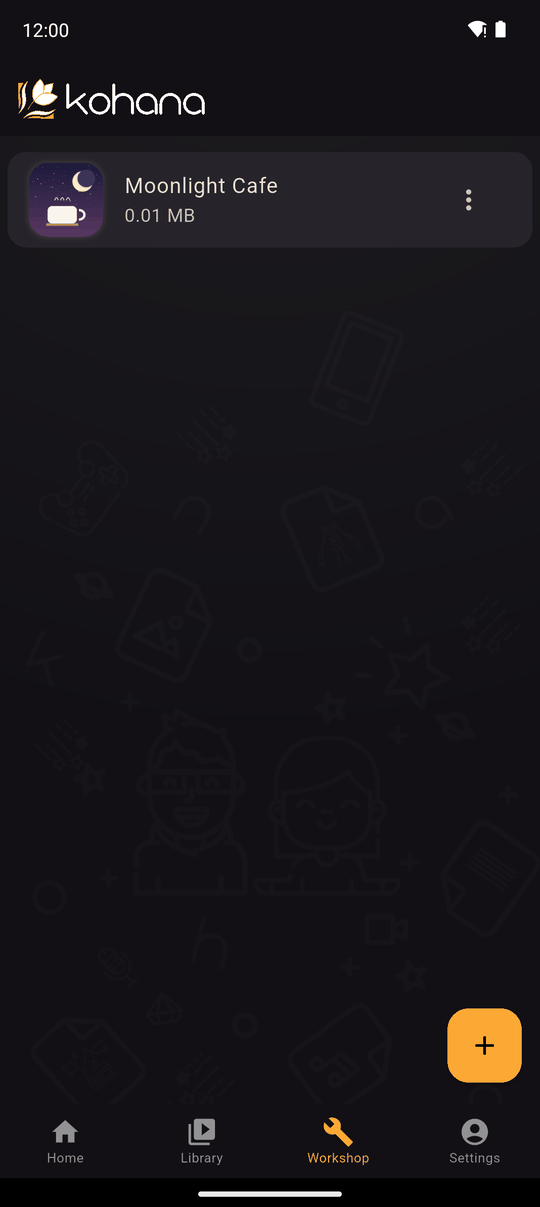
1. Create the novel
- Open the Workshop tab and tap +.
- Enter a Novel title and confirm.
- Tap your new novel to open the editor.
See The Workshop.
2. Add a chapter and a scene
- In the Timeline tab, tap + to create a Chapter, and give it a title.
- Open the chapter and tap + to create a Scene, and give it a name.
- Open the scene.
See Chapters and scenes.
3. Add your first lines
The scene editor shows a live preview at the top and your list of actions below it.
- Tap + and choose Add text.
- Pick Other, type a speaker name (for example Narrator), write a message and tap ADD ACTION.
- Add a few more lines the same way.
See The scene editor and Add text.
4. Give it a look
- Add a background in the Scenery tab, then use Change scenery in the scene.
- Add a character in the Characters tab, then use Change characters to put them on stage.
- Add music in the BGM tab, then use Change BGM.
See Scenery, Characters and Music and sound effects.
5. Let the reader choose
Use Add choices to offer up to four options, and let each one change a variable. Then use a condition on a later scene so the story reacts.
See Add choices, Variables and Conditions.
6. Play it
Open the novel's menu in the Workshop and choose Preview/Play. To test a single scene, use Preview on that scene.
7. Share it
When you are happy with it, you can upload it for review so anyone can find it, send a private link, or export it as an app.
Last updated: